 Fieldmark Documentation
Controlled Number
How to add and configure a Controlled Number field in the Notebook Editor.
Important
Controlled Number is deprecated for new form design. It remains fully supported for existing notebooks and existing Controlled Number fields are not removed. For new forms, prefer Number Input, which provides the same minimum and maximum bounds along with broader numeric support.
What This Field Does
A Controlled Number field accepts bounded numeric values, enforcing minimum and maximum constraints at the point of entry. Use it for ratings, scores, percentages, and measurements with known valid ranges — such as pH (0–14), condition ratings (1–5), or percentage cover (0–100). Unlike Number Input, it catches out-of-range entries immediately rather than during post-processing.
Adding the Field
New Controlled Number fields are not available from the add-field chooser. Controlled Number remains supported for legacy notebooks where it already exists. For new forms, add Number Input instead and configure its minimum and maximum bounds.
Note: You can still edit Controlled Number settings for existing fields.
Configuring the Field
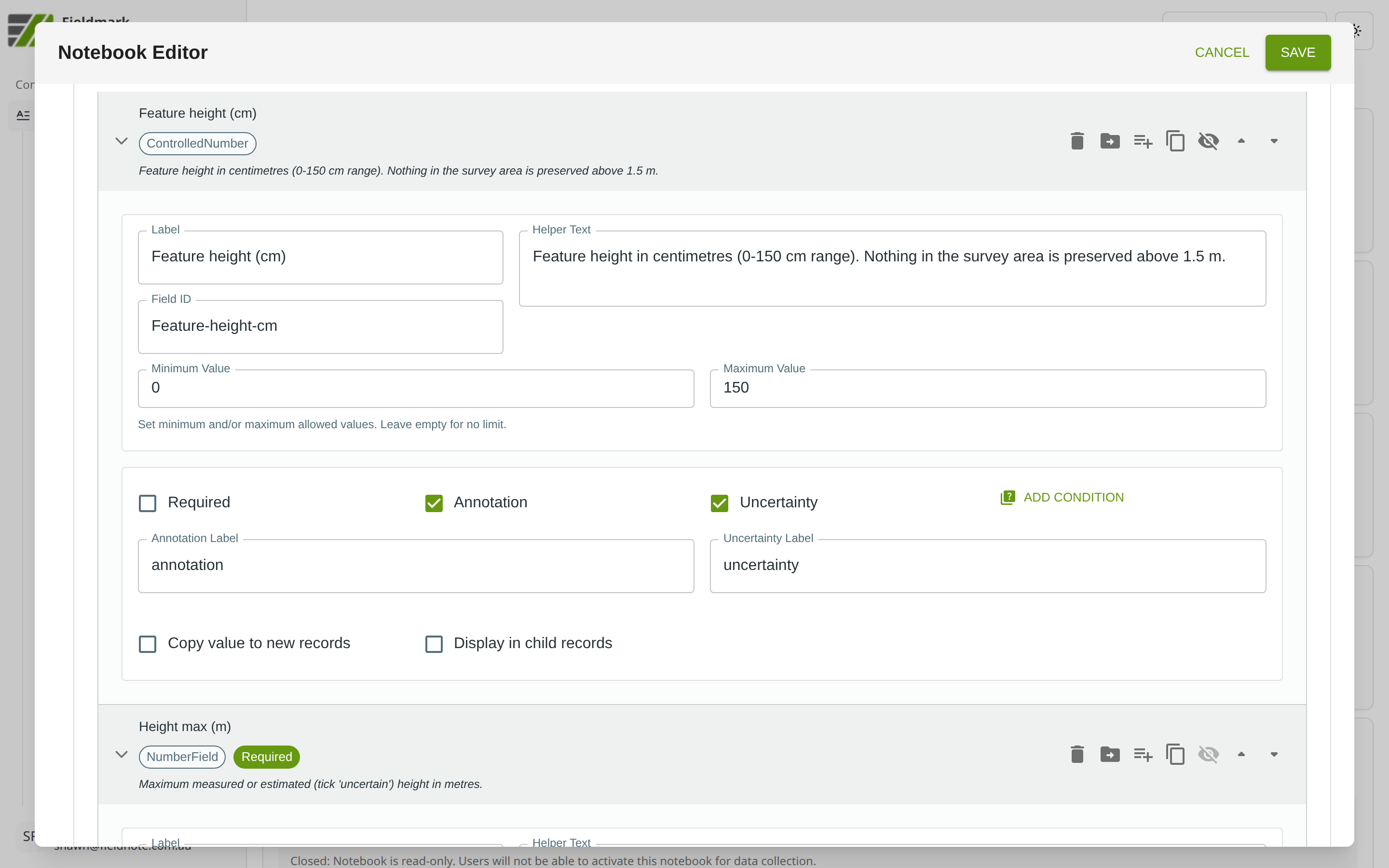
Click the field’s grey header bar to expand it and see its settings. For an overview of the settings shared by all fields — including Label, Helper Text, Field ID, and the field toolbar — see Field Identity and Field Toolbar.
Give the field a meaningful Label, review the auto-populated Field ID, and add any desired Helper Text.
Controlled Number-Specific Settings
Below the identity fields, the Controlled Number provides settings for defining the valid numeric range:
Setting |
What It Does |
|---|---|
Min |
The minimum allowed value. Entries below this are rejected. |
Max |
The maximum allowed value. Entries above this are rejected. |
Tips
Set ranges based on what is physically plausible, not just what you expect. For example, a depth field might use 0–500 cm rather than the 0–300 cm range you anticipate. Overly tight bounds block legitimate data entry and frustrate users in the field.
The field always has a numeric value — it defaults to 0 and cannot store null (empty). If your workflow needs to distinguish “not measured” from “measured as zero”, use Number Input instead.
Catches errors at the point of collection. Out-of-range values (e.g., pH above 14, negative depths) are rejected immediately rather than slipping through to post-processing.
Enable Annotation and Uncertainty for measurement fields where collectors might need to note the instrument type, recording conditions, estimation method, or unexpected out-of-range values.
Migration Guidance
Existing Controlled Number fields can be left in place and will continue to work.
For new templates, use Number Input and set its minimum and maximum to enforce bounds.
Number Input also distinguishes empty (null) from zero, which Controlled Number cannot.