 Fieldmark Documentation
Notebook Invitations
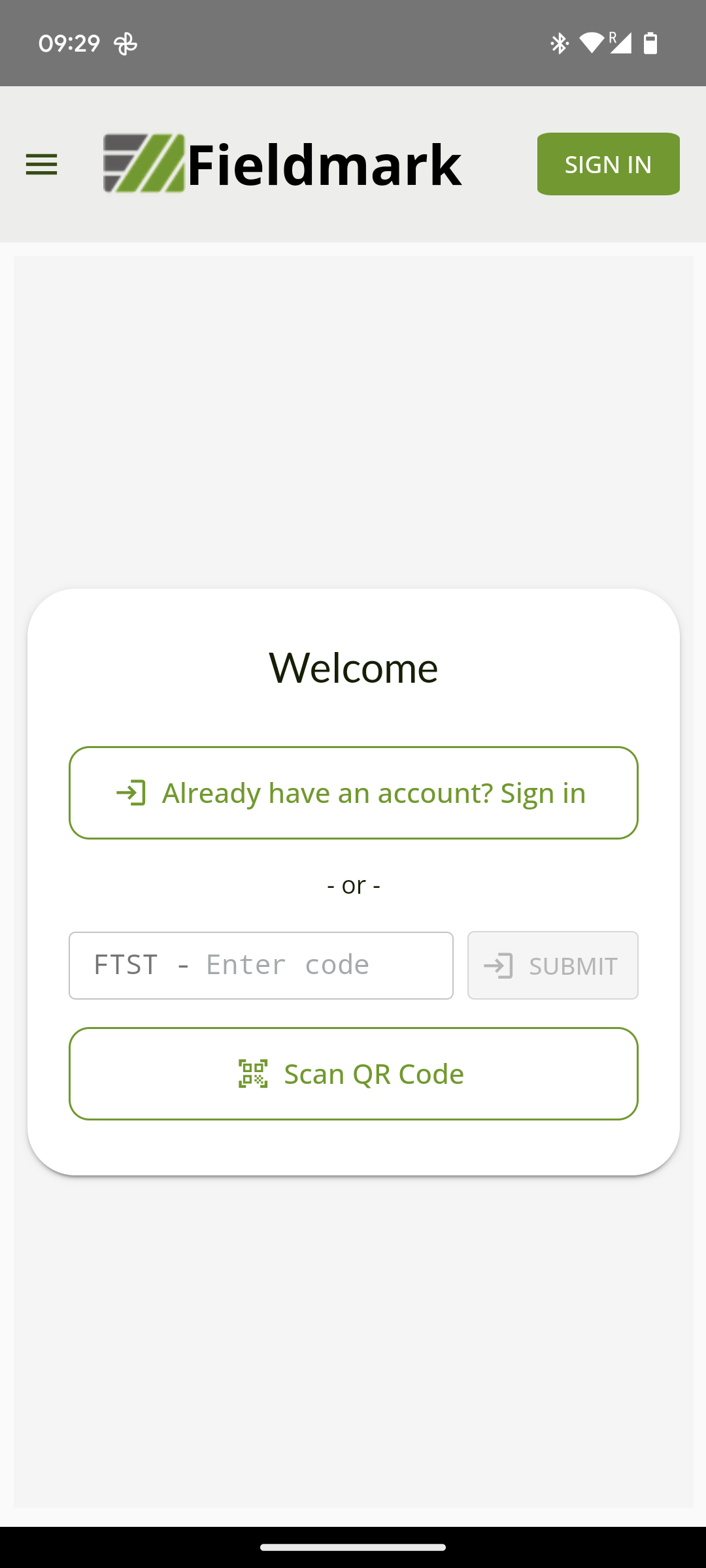
Once the mobile app has been installed, you can get access to a notebook by getting an invitation in the form of an access code or a QR code:
Only Team Managers and Team Administrators can generate invitation codes. See User roles and permissions for more information.
Access Codes
An access code looks something like FMRK-ABC123 and gives you access to the specified notebook.
The first part (FMRK) is a prefix that identifies the server and should match the prefix shown in your app.
The six character code (ABC123) is the one that you will enter in the app.
Once entered the code, you will see the registration screen.
QR Coded Invitations
The QR code option makes it easy to get access to a notebook. QR code invitations can be shared via email, print outs or directly from your Team Manager’s device.
To accept the invitation, click the QR Code button and scan the QR code with your device to get to the registration screen.
If you don’t already have an account on the Fieldmark server, you will be able to register for an account at this point. You can either register with your email and password, or you can use a Google account.
At this point, registration just gives you access to this one notebook but you may be given access to others in the future.
If you already have an account on the Fieldmark server, use the button to login instead of registering a new account. Once you are logged in you will be given access to the notebook.
After registering or logging in, you will be shown the main notebook list in the app and you can activate the notebook you will be working on.