 Fieldmark Documentation
Field Options
Shared options available on every field type in the Notebook Editor.
Overview
Below the field identity inputs (Label, Field ID), Helper text, and any field-specific settings, every field has a shared options panel. These options control validation, annotations, visibility logic, and data persistence.
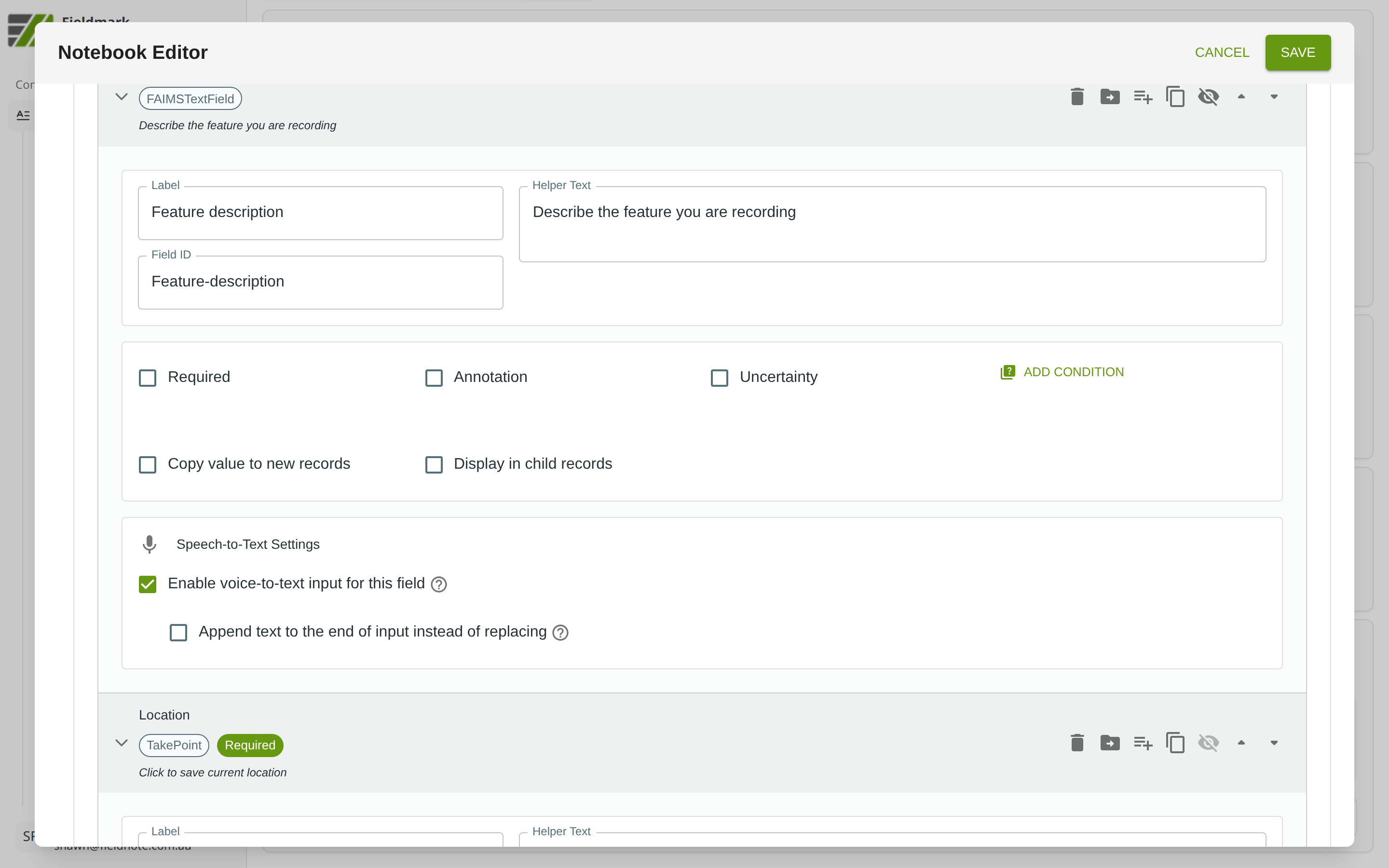
Options
Required
Check the Required checkbox to make this field mandatory. Fieldmark uses soft validation: collectors see visual feedback in the app if a required field is blank, but saving and syncing are unaffected. In the Editor, required fields display a green Required badge below the field’s label.
Annotation
Check the Annotation checkbox to add a free-text notes field alongside this field during data collection. When Annotation is enabled, an Annotation Label input appears — if desired, you can type a custom label (for example, “Notes”, “Comments”, or “Field observations”) to describe what kind of annotation you expect.
The annotation value is stored separately and exported as an additional
column (e.g., Feature-description_annotation in CSV exports).
Uncertainty
Check the Uncertainty checkbox to add a checkbox that collectors can tick to flag a value as uncertain or questionable. When enabled, an Uncertainty Label input appears — type a custom label (for example, “Uncertain”, “Approximate”, or “Needs verification”).
The uncertainty flag is stored as a boolean and exported as a separate
column (e.g., Feature-description_uncertainty in CSV exports).
ADD CONDITION
Click the ADD CONDITION button to create visibility rules that show or hide this field based on the values of other fields. Conditions use a builder interface with logic operators and field references.
For a detailed walkthrough of the conditions builder, see Conditions.
Copy value to new records
Check the Copy value to new records checkbox to carry this field’s value forward when a collector creates a new record. This “stickiness” is useful for fields whose value rarely changes between records — such as the recorder’s name, persistent environmental conditions, or a site identifier.
Display in child records
Planned feature. When implemented, checking this option will display this field’s value (read-only) from the parent record when a collector is working in a related child record, providing context without requiring navigation back to the parent.
Note: Some field types display additional settings below the shared options panel. For example, text fields include a Speech-to-Text Settings section with options to enable voice-to-text input. These field-type-specific settings are documented in each field type’s own design guide.
Tips
Use Annotation as “the margin of the page” or “the back of the form”. Fieldwork often involves unexpected situations; Annotation brings some of the flexibility of paper recording to digital forms, helping fieldworkers cope with the unexpected.
Pair Annotation and Uncertainty for classification fields where collectors might need to qualify their choice — for example, noting “tentative identification” or “poor visibility conditions”. The combination lets collectors both flag uncertainty and explain their reasoning.
Use Required sparingly. Mandatory fields slow down data entry. Reserve Required for fields that are essential to record identification or where missing data would seriously degrade the record.
Enable Copy value to new records for session-level fields like recorder name, stable environmental conditions, or survey area. This reduces repetitive data entry when creating multiple records in the same context.