 Fieldmark Documentation
Number Input
How to add and configure a Number Input field in the Notebook Editor.
What This Field Does
A Number Input field accepts numeric data — measurements, counts, calculations, or scientific readings. It supports both integers and decimals, distinguishes empty (null) from zero, and handles scientific notation (e.g., 1.23e-7).
Adding the Field
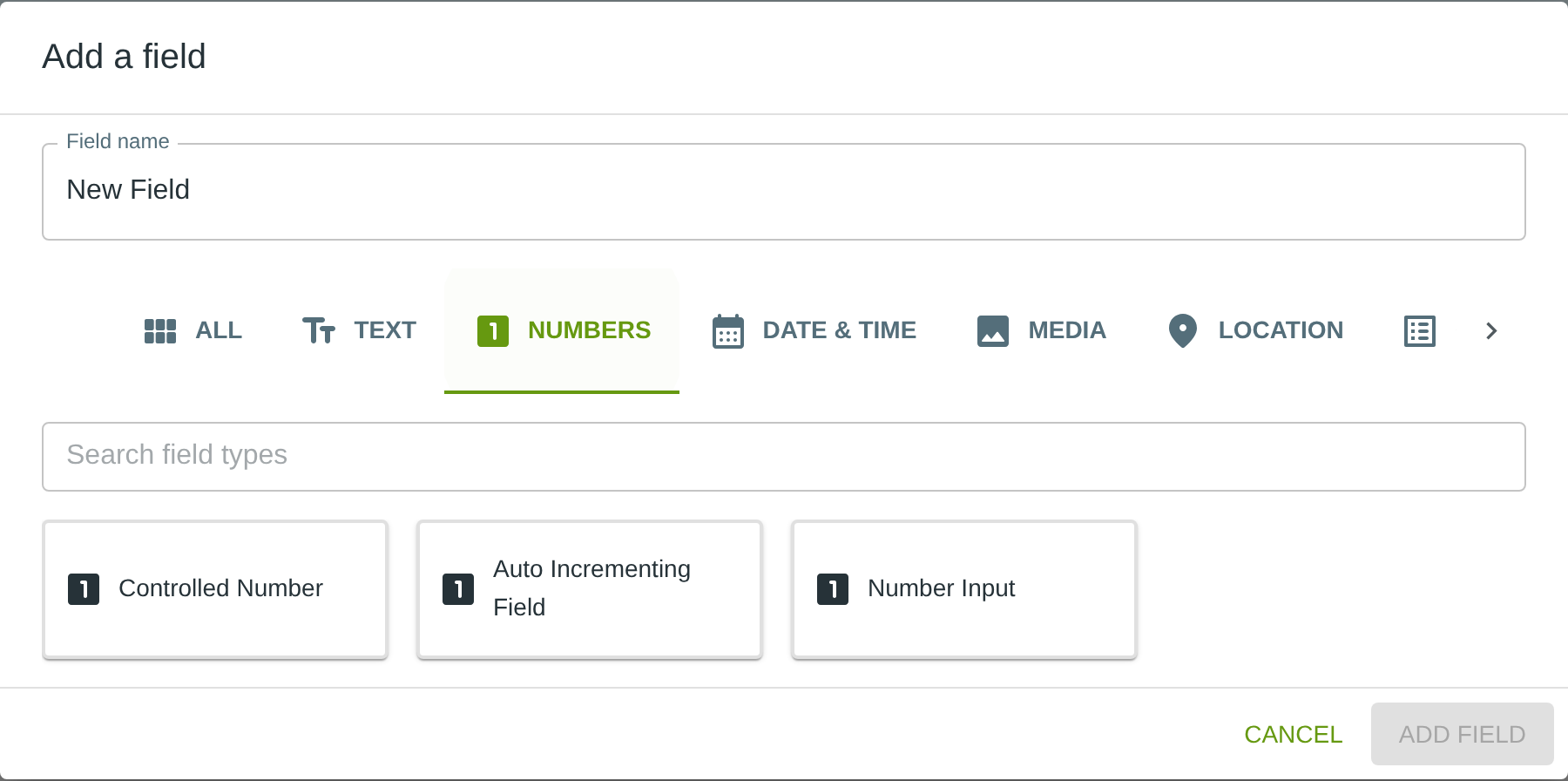
To add this field, open the ADD A FIELD dialog, navigate to the NUMBERS tab, and click the Number Input card. Then click the ADD FIELD button in the lower right.
Configuring the Field
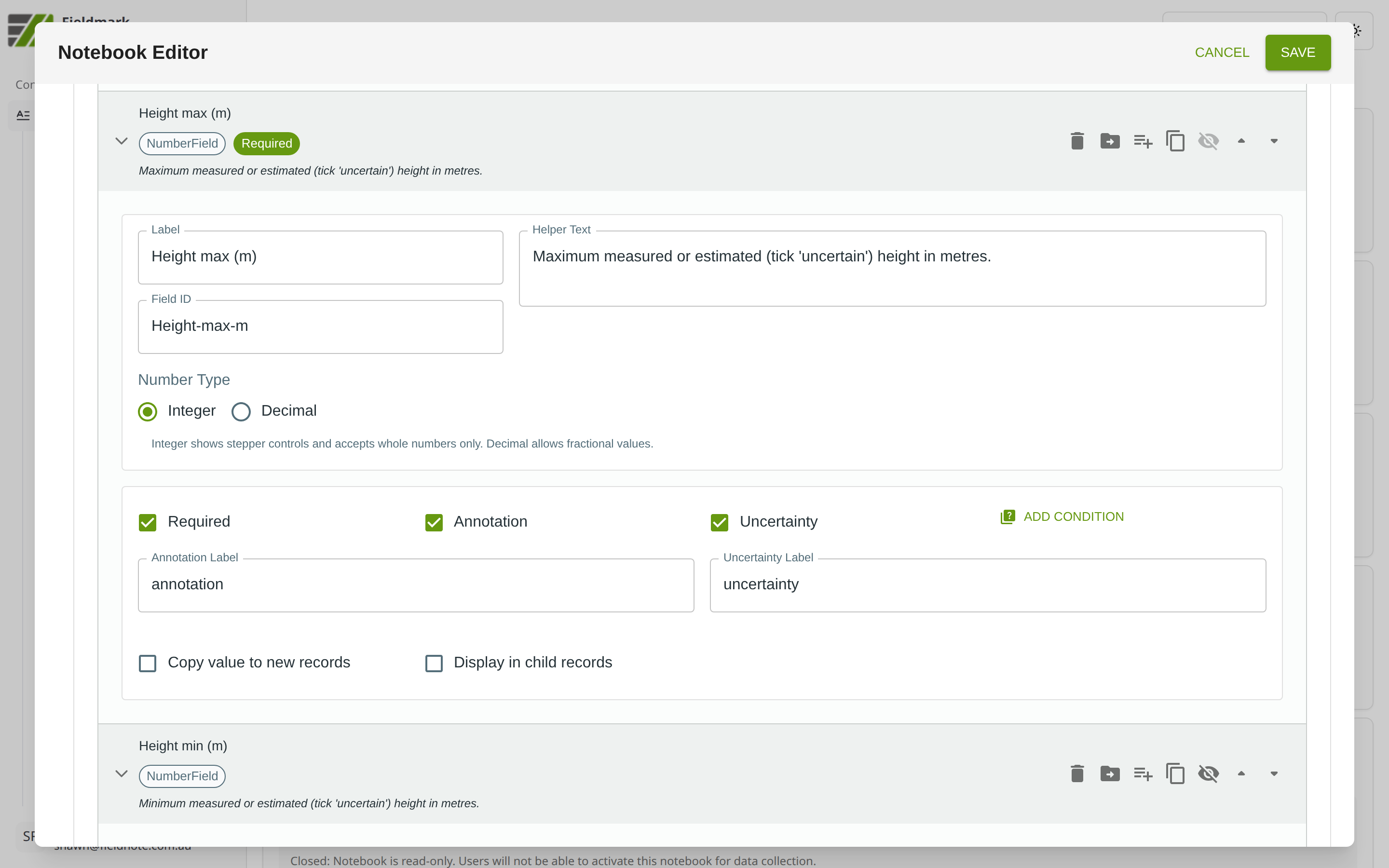
Click the field’s grey header bar to expand it and see its settings. For an overview of the settings shared by all fields — including Label, Helper Text, Field ID, and the field toolbar — see Field Identity and Field Toolbar.
Give the field a meaningful Label, review the auto-populated Field ID, and add any desired Helper Text.
Number Input-Specific Settings
Below the identity fields, a Number Type setting controls the kind of numeric data the field accepts:
Number Type |
What It Does |
|---|---|
Integer |
Accepts whole numbers only. Shows stepper controls (up/down arrows) for quick adjustment. |
Decimal |
Accepts fractional values (e.g., 3.14, 0.001). This is the default. |
Tips
Integer vs Decimal depends on your data. Use Integer for counts (artefact quantities, stratum numbers) and Decimal for measurements (depths, weights, coordinates).
An empty field stores null, not zero. This preserves the distinction between “not measured” and “measured as zero” — important for data where missing values have different analytical implications.
On iOS devices, the number keyboard lacks a minus key. If collectors need to enter negative values (e.g., below-datum elevations), consider using a FAIMS Text Field with format guidance instead, or instruct collectors to copy-paste the minus character.
Enable Annotation and Uncertainty for measurement fields where collectors might need to note instrument type, recording conditions, measurement difficulties, or confidence.