 Fieldmark Documentation
Auto Incrementing Field
How to add and configure an Auto Incrementing Field in the Notebook Editor.
What This Field Does
An Auto Incrementing Field generates sequential string identifiers automatically — such as specimen numbers, context numbers, or catalogue IDs. Each new record receives the next number in the sequence (e.g., 001, 002, 003). The value is auto-generated and cannot be edited by data collectors.
Adding the Field
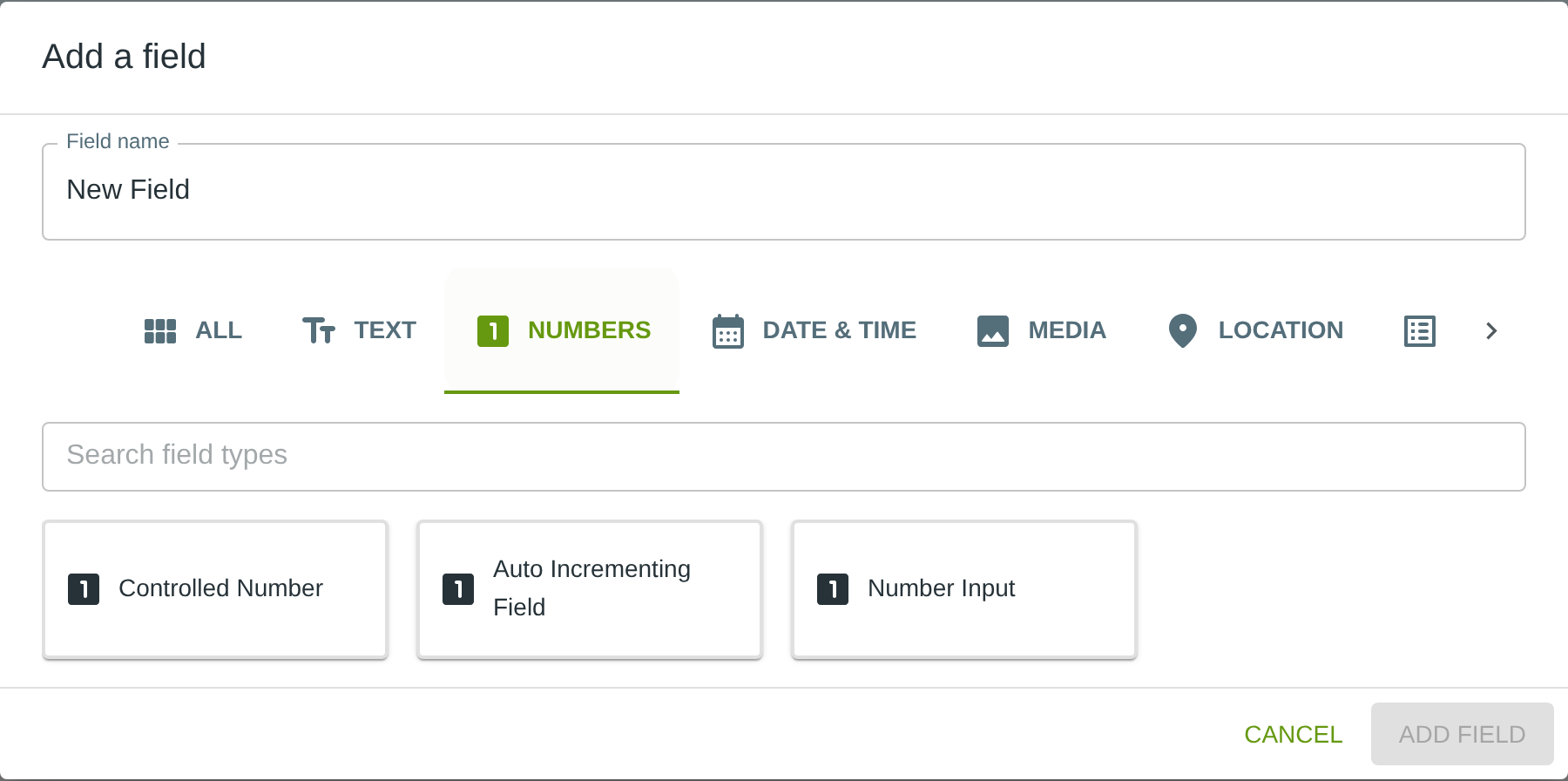
To add this field, open the ADD A FIELD dialog, navigate to the NUMBERS tab, and click the Auto Incrementing Field card. Then click the ADD FIELD button in the lower right.
Configuring the Field
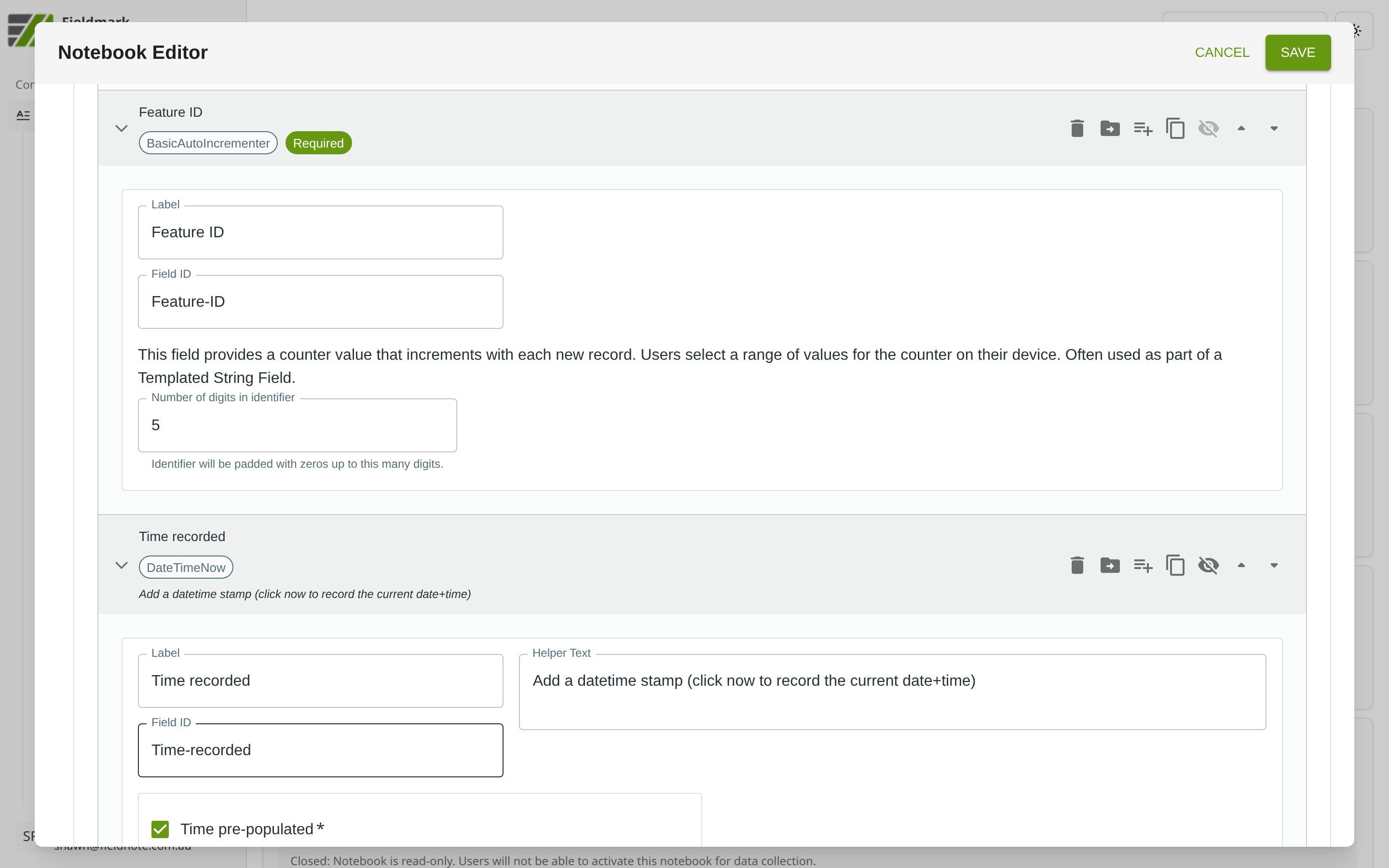
Click the field’s grey header bar to expand it and see its settings. For an overview of the settings shared by all fields — including Label, Helper Text, Field ID, and the field toolbar — see Field Identity and Field Toolbar.
Give the field a meaningful Label, review the auto-populated Field ID, and add any desired Helper Text.
Auto Incrementing Field-Specific Settings
The Auto Incrementing Field provides one configurable setting:
Setting |
What It Does |
|---|---|
Number of digits in identifier |
The number of digits in the generated identifier, with leading zeros for padding (e.g., 5 digits produces “00001”). |
Tips
The identifier is a padded string, not a number. A 5-digit counter generates “00042”, not 42. This preserves leading zeros in exports and avoids numeric sorting issues in spreadsheets.
Wrap in a Templated String to build meaningful composite identifiers — for example, “SAMPLE-00042-2026” combines the auto- incremented number with a prefix and year.
Ranges are configured per-device in the data collector. Each device is given a non-overlapping range of numbers (e.g., Device A: 1–500, Device B: 501–1000) so identifiers stay unique without network coordination. Data collectors set their own ranges — typically following a protocol defined by the project leader. To configure ranges, open “Settings” in the Fieldmark data collector and use the “Edit auto-incrementers” panel. Each Auto Incrementing Field has its own button, which opens a dialog where you set start and stop values, add new ranges, and update the last used value. If a range is exhausted, a new one can be added on that device.
Plan your numbering scheme before deploying. Once a range is created on a device it cannot be edited — you can only close it and add a replacement. Because Fieldmark is designed for off-line use, no automatic conflict checks are made across devices, so ensure ranges do not overlap when assigning them.