 Fieldmark Documentation
Field Identity
The Label, Helper Text, and Field ID that every field shares.
Overview
When you expand a field by clicking its grey header bar, you will see the field’s type badge (e.g., “FAIMSTextField”), its Helper Text preview in italic, and the toolbar icons. Below that, the first panel contains two identity inputs (“Label” and “Field ID”) plus a “Helper Text” input field. Identity inputs control how the field appears to collectors and how its data is stored in exports, while Helper Text allows you to provide guidance to data collectors using the notebook.
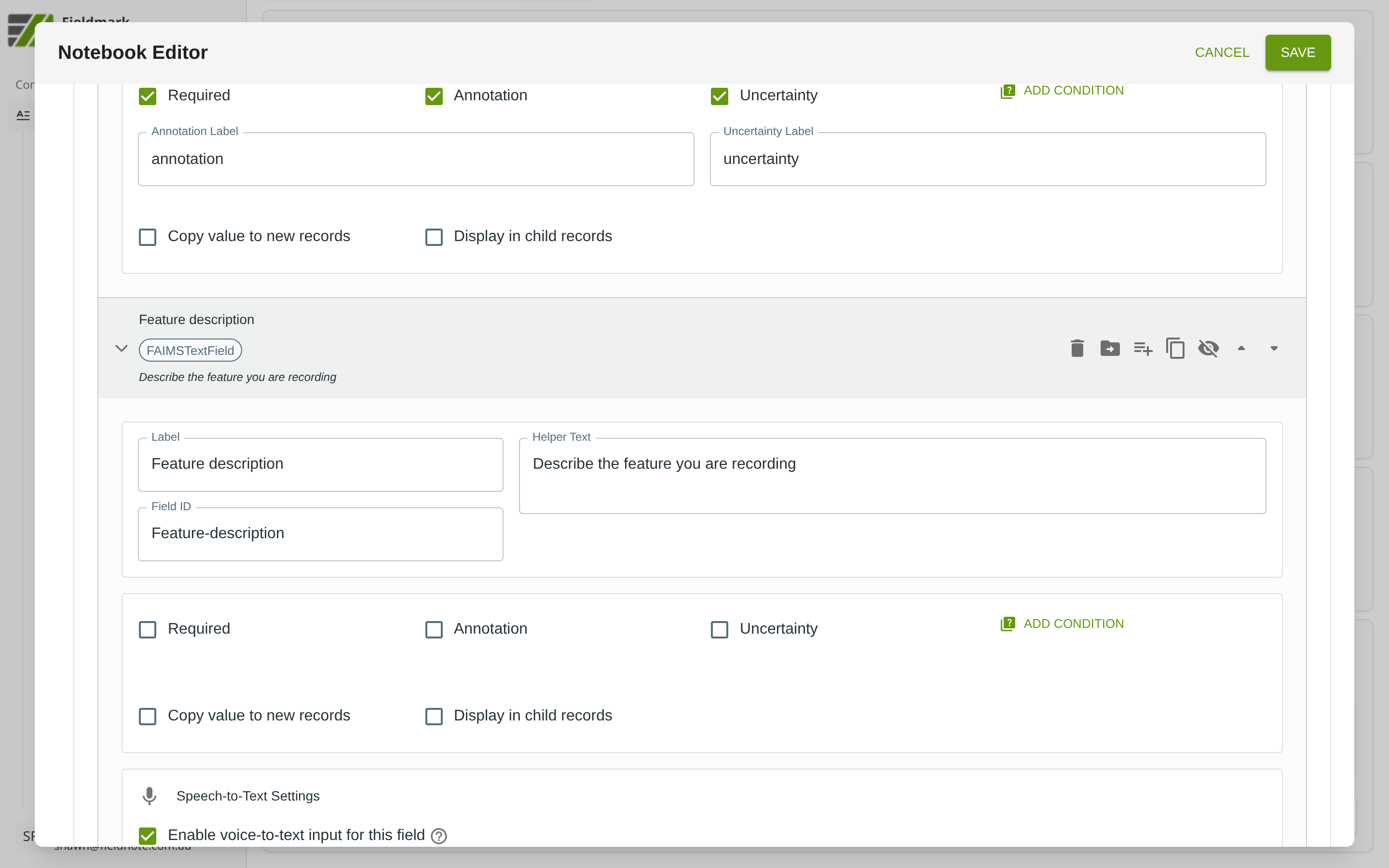
Label
The Label is the display name shown above the field during data collection. It also appears as the column header when you export data to CSV or JSON.
Choose a label that is short, descriptive, and unambiguous. Good labels read naturally as column headers in a spreadsheet — for example, “Feature type”, “Soil colour”, or “Artefact count”.
Field ID
The Field ID is the machine-readable identifier used as the JSON key
in exports and the internal database key. When you type a Label, the
Field ID auto-generates by converting spaces to hyphens — for example,
“Feature description” becomes Feature-description. The original
capitalisation is preserved.
You can edit the Field ID directly if you need a different key, but it must be unique within the notebook. Once data has been collected against a field, changing its Field ID will break the link to existing records. In most cases, if you’ve chosen a good Label, you can accept the default Field ID.
Warning: Avoid changing the Field ID after data collection has begun. Existing records reference the original ID, and changing it will orphan that data.
Helper Text
The Helper Text is instructional text displayed below the field during data collection. Use it to tell collectors what kind of information to enter, what units to use, or how to handle edge cases.
Helper Text supports Markdown formatting — you can use **bold**,
*italic*, or [links](https://example.com) to emphasise key
instructions.
Tips
Keep Labels concise — they appear in mobile interfaces where screen space is limited, and as export column headers where brevity aids readability.
Use Helper Text for instructions, not titles — the Label already serves as the field’s title. Use Helper Text to explain how to fill in the field, not what the field is.