 Fieldmark Documentation
Field Toolbar
The icon toolbar in each field’s header bar.
Overview
Every field in the Notebook Editor has a toolbar of icon buttons on the right side of its header bar (the grey bar you click to expand or collapse the field). The icons sit to the right of the field’s Label, type badge, and Helper Text preview. These buttons provide quick actions for managing the field without opening additional menus.
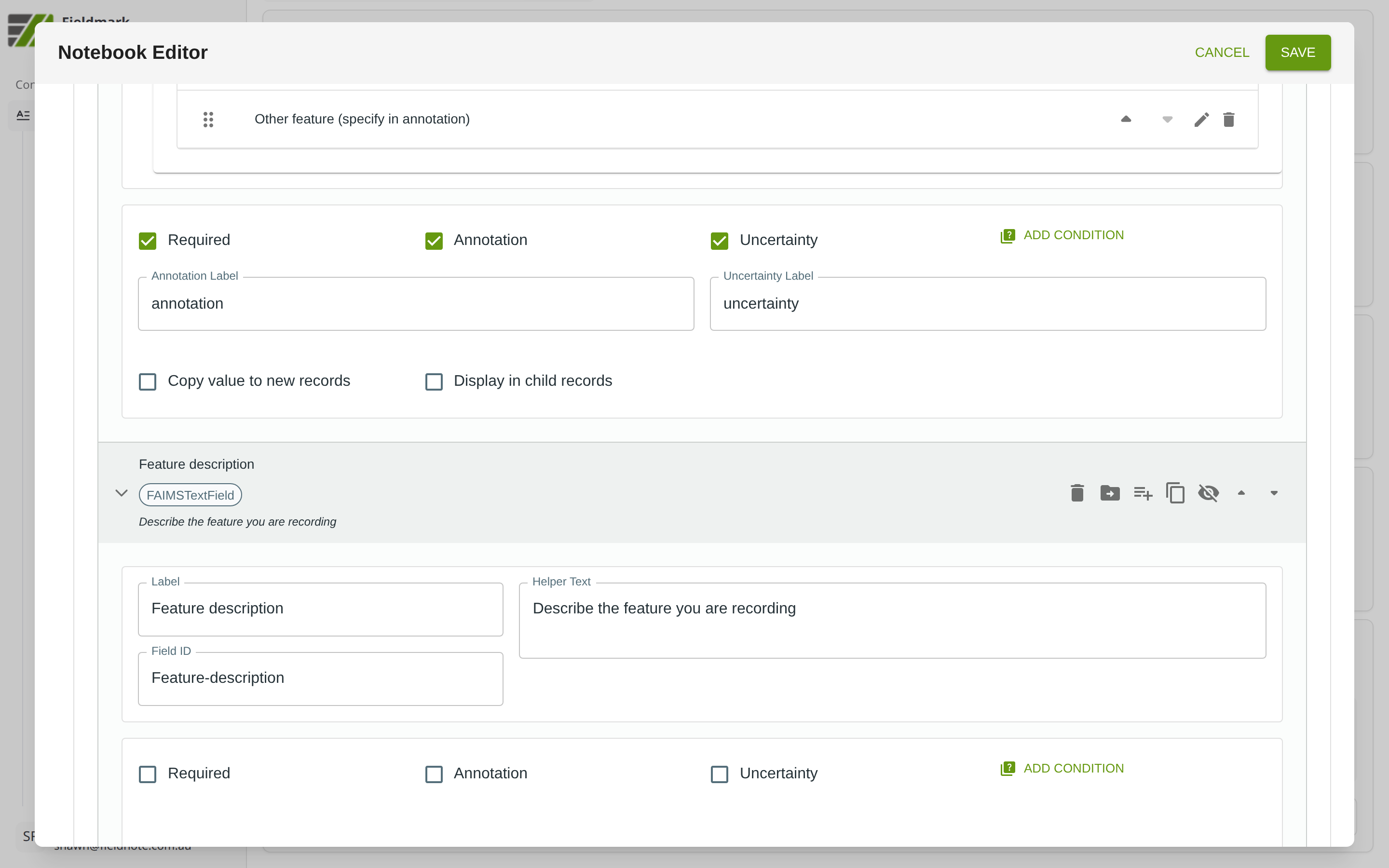
Toolbar Icons
The following icons appear from left to right in each field’s toolbar:
Icon |
Action |
Description |
|---|---|---|
Trash can |
Delete |
Removes the field from the form. |
Folder with arrow |
Move to section |
Moves the field to a different section of the form. |
Lines with plus |
Add field |
Opens the Add a field dialog to insert a new field directly below this one. |
Overlapping squares |
Duplicate |
Creates a copy of this field with the same settings. |
Eye with slash |
Hide field |
Hides the field from collectors without deleting it. Hidden fields retain their configuration and data. |
Up caret |
Move up |
Moves the field one position higher in the section. |
Down caret |
Move down |
Moves the field one position lower in the section. |