 Fieldmark Documentation
Using your Notebook
Once your notebook is activated, you can begin to create records and these will be automatically saved to the server. You may also be able to see records from other users, depending on your role with respect to this notebook.
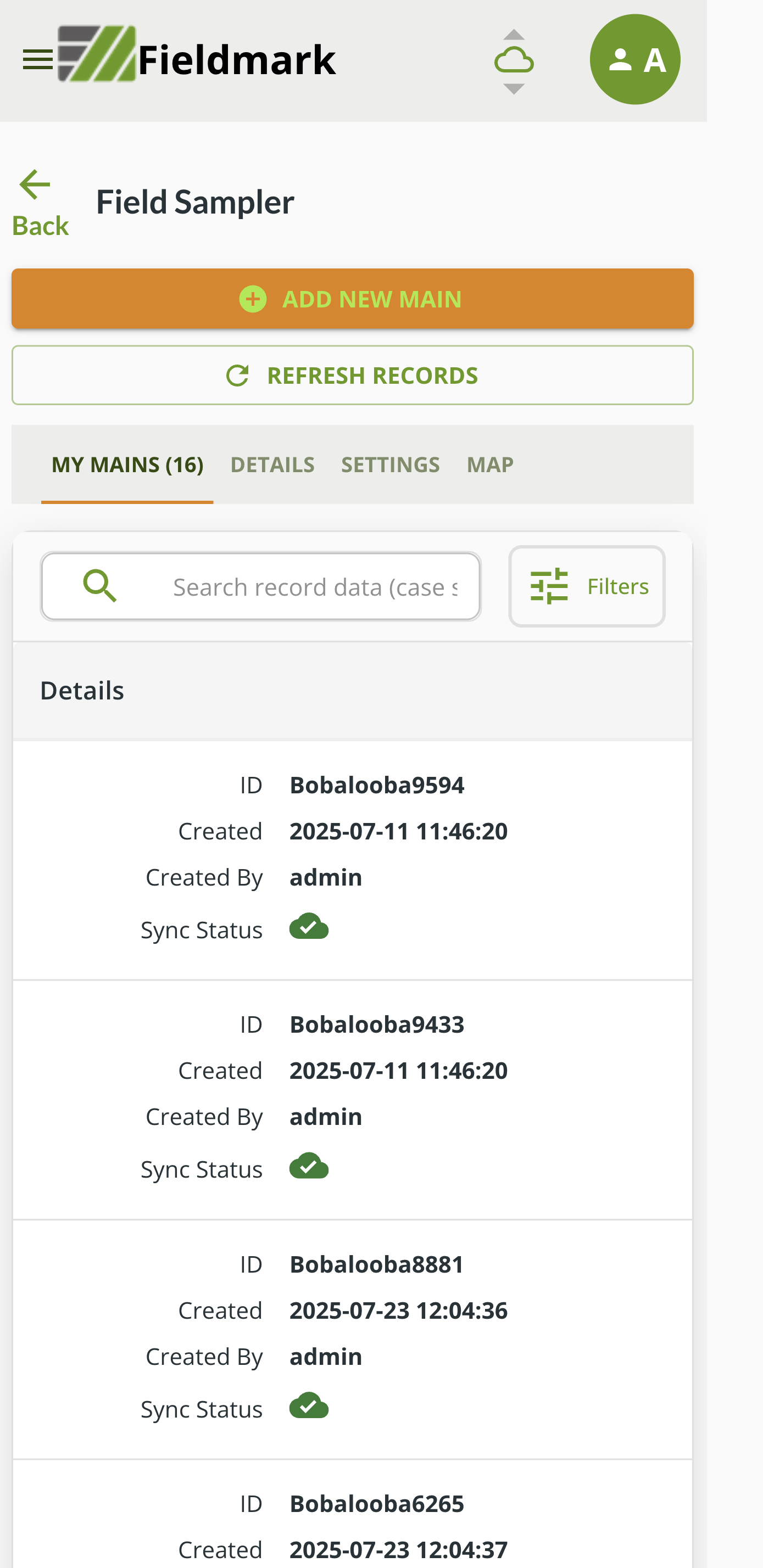
Enter a notebook by touching or clicking on the name of the notebook in the active list. You will now see the notebook page where you can create new records and see any existing records you have access to:
Note
The page will look different depending on the design of the notebook you are using.
a) The Record List
The first page you see when you enter a notebook is the Record List screen.
At the top of the page you will see buttons marked with a + sign that allow you to add new records of a given type: in this case it is + ADD NEW MAIN since the form is called Main.
Note
A notebook can contain many forms and there can be one or more of these Add New buttons configured.
Below these you will see the REFRESH RECORDS button, this will force an update of the displayed list of records.
Note
The list will update itself from time to time but sometimes it’s useful to force a refresh
Below these buttons is the area where existing records are displayed along with other information and controls for the notebook:
The DETAILS tab has some details about the notebook such as the owner and, when set, a short description of the notebook (longer design intent may appear in design metadata).
The SETTINGS tab has a number of settings for the notebook on your device.
The MAP tab will show an overview map of the records that have been collected if those records include GPS locations.
The main tab shows the records you have access to on your device:
MY RECORDS if there is more than one form, or
MY XXXX where XXXX is the name of the form, if you only have one form in your notebook
If you are collaborating with others and have access to their records, you will also see an OTHER RECORDS tab where you can browse the data they have entered.
The list of records shows a few pieces of information about each record; this can be different in some notebooks depending on the configuration. You should at least see an identifier for the record, when it was created and by whom and the Sync Status; this last item will show a green cloud with a tick if the record is known to be saved on the server and an amber circle if upload is still pending.
Creating a Record
To create a new record from the Record List, tap or click the + ADD NEW MAIN button.
Entering Data
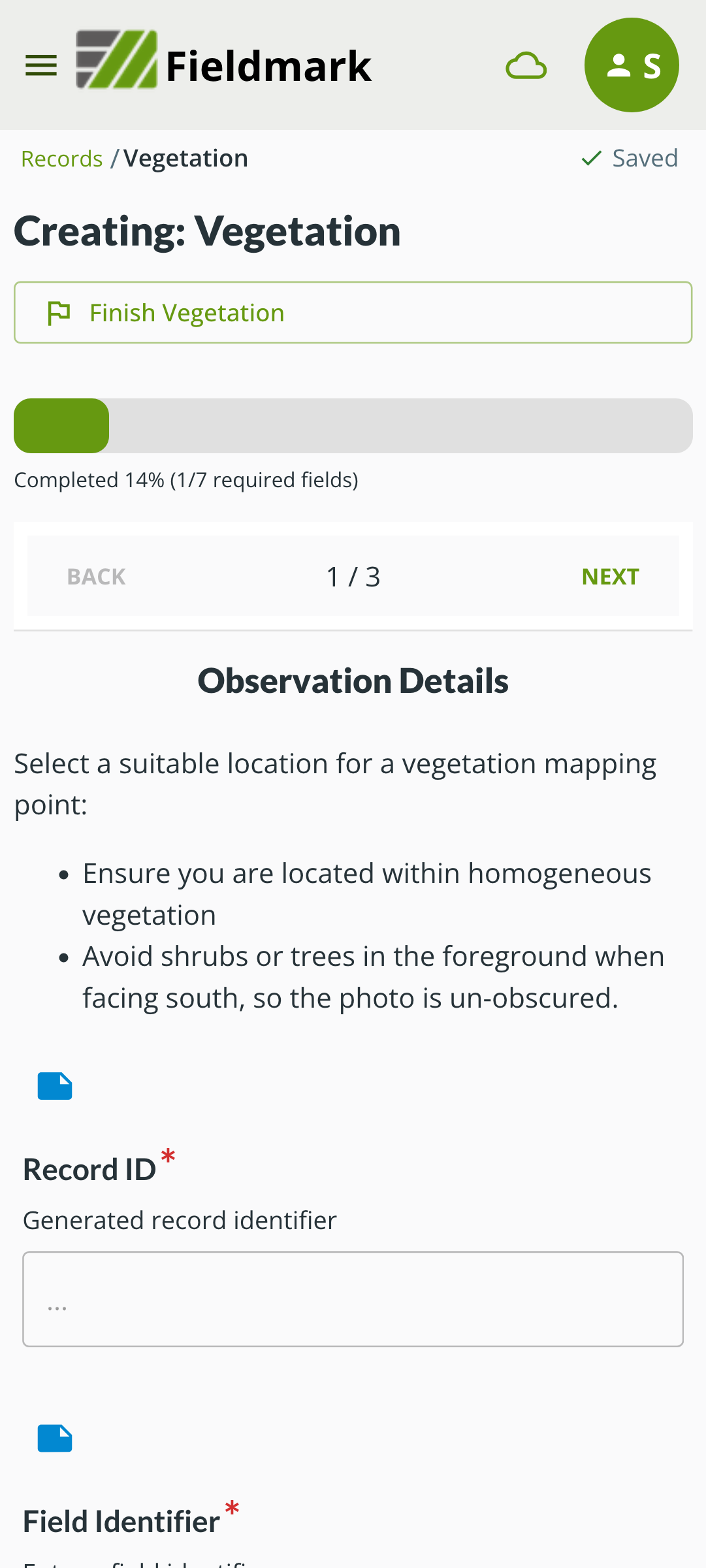
When you create a new record or edit an existing one, you will see a form similar to the screenshot shown here where you can enter your data:
Note
The details of the form will depend on the configuration of the notebook you are using.
How you fill our the form will vary will depend on the configuration of the notebook you are using.
Fieldmark has a number of different field types that you can interact with.
There will usually be a short help text along with each field and in some cases, longer help is available via an icon next to the field label.
Parts of a Form
The form you are filling may have more than one section, as shown in the screenshot above where it is showing section 1 of 3 sections. You can navigate between sections using the ‘Next’ and ‘Back’ links.
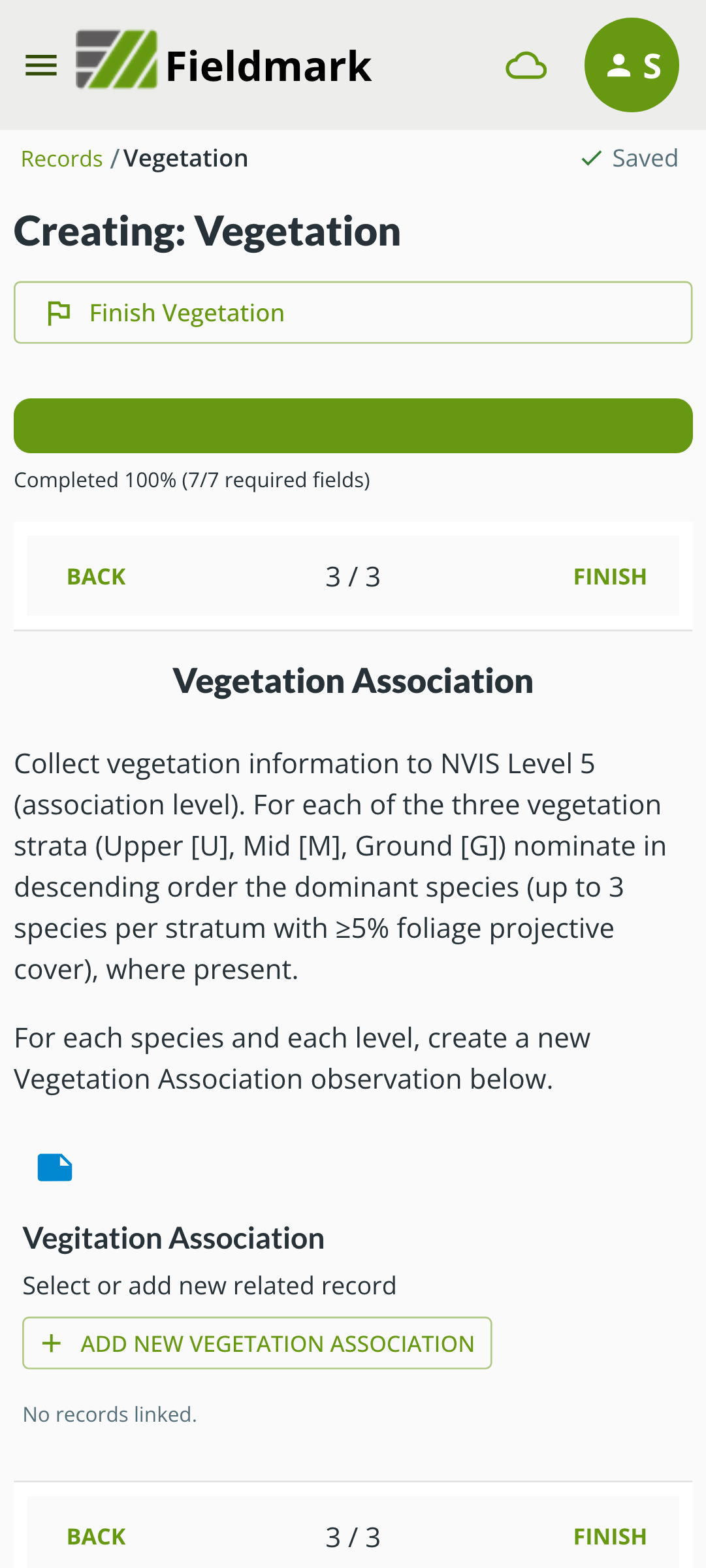
As you complete the form and scroll to the end of the section, you will see the ‘Finish’ button as shown in this screenshot. Above this, you may see a warning as shown here if there are errors in the form - generally if you have missed entering some data.
The error message should include a link that will scroll to the field that is missing.
If the error is in a different section of the form, it will link you to that section.
If the form has errors, you are still able to finish your edits, all of the data that you have entered will be saved and you can come back later to fix the errors.
If you scroll to the top of the screen on any section you will also see a ‘Finish’ button. Your data is saved as you enter it, the Finish buttons will return you to the record list.
Annotations and Uncertainty
In the screenshots above you might notice the small blue icon below some fields. This indicates that the notebook field has been configured to allow annotations.
If you click on this icon you will be able to enter either a textual annotation or note, or check a box that might be labelled ‘Uncertain’ or something similar. These annotations are in addition to the data you enter in the field and can be used to make a note about the data - for example that you were unable to take a measurement properly or that you are uncertain about the exact value.
These annotations are then available alongside the actual data when it is exported from Fieldmark.
See Marginal Data for more information about Annotations and Certainty flags.