 Fieldmark Documentation
Child and Related Records
In some notebooks, you will have the option of entering one or more child records associated with a record:
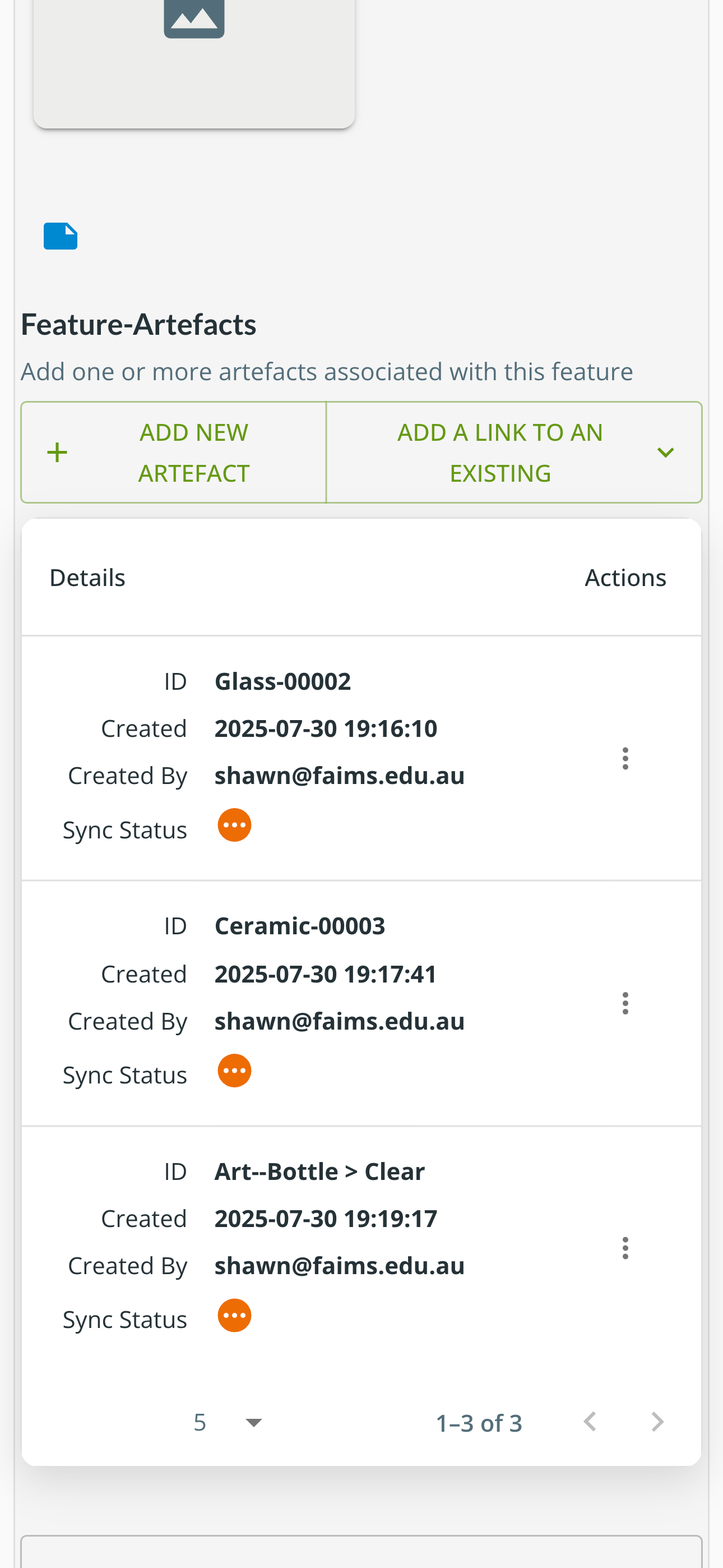
In the example in the screenshot, we are editing a record for a Feature to which we will attach one or more artefacts. Here we can see a list of the child records that are already in place, we can click on the Add New Artefact button to create a new child record or click on one of the existing ones to edit it.
Editing a child record is the same as editing any other record, you will fill in the fields and click ‘Finish and Close …’ when done. However, instead of returning you to the main record list, you will come back to the parent record (e.g. this Feature record). Clicking ‘Finish and New …’ would create a new child record in the same parent.
Child records can be used for many different purposes. Examples might be buildings within a survey area, artefacts within an archaeological feature, measurements over time of a single tree, etc.
You may also have the option to add a link to an existing record. This might be used if you want to move a child from one parent record to another (eg. this building actually belongs in a different site). Use the Actions menu on the record to unlink it from this parent record, then go to the other parent record and add the link.
The most common use of relationships between records is for parent-child relationships where one thing contains or is associated with many others. However, it is also possible to configure a notebook to record arbitrary relationships between records. An example might be to record that one site is immediately adjacent to another. In this case, you would see a similar interface to that for child records but you would also be able to select the relationship between the two records.