 Fieldmark Documentation
Date picker
How to add and configure a Date picker field in the Notebook Editor.
What This Field Does
A Date Picker captures a date without a time component, storing it in YYYY-MM-DD format. Use it for administrative and observational records where the time of day is irrelevant — such as excavation dates, permit expiry dates, scheduled revisit dates, or any temporal data where adding a time component would constitute false precision.
Adding the Field
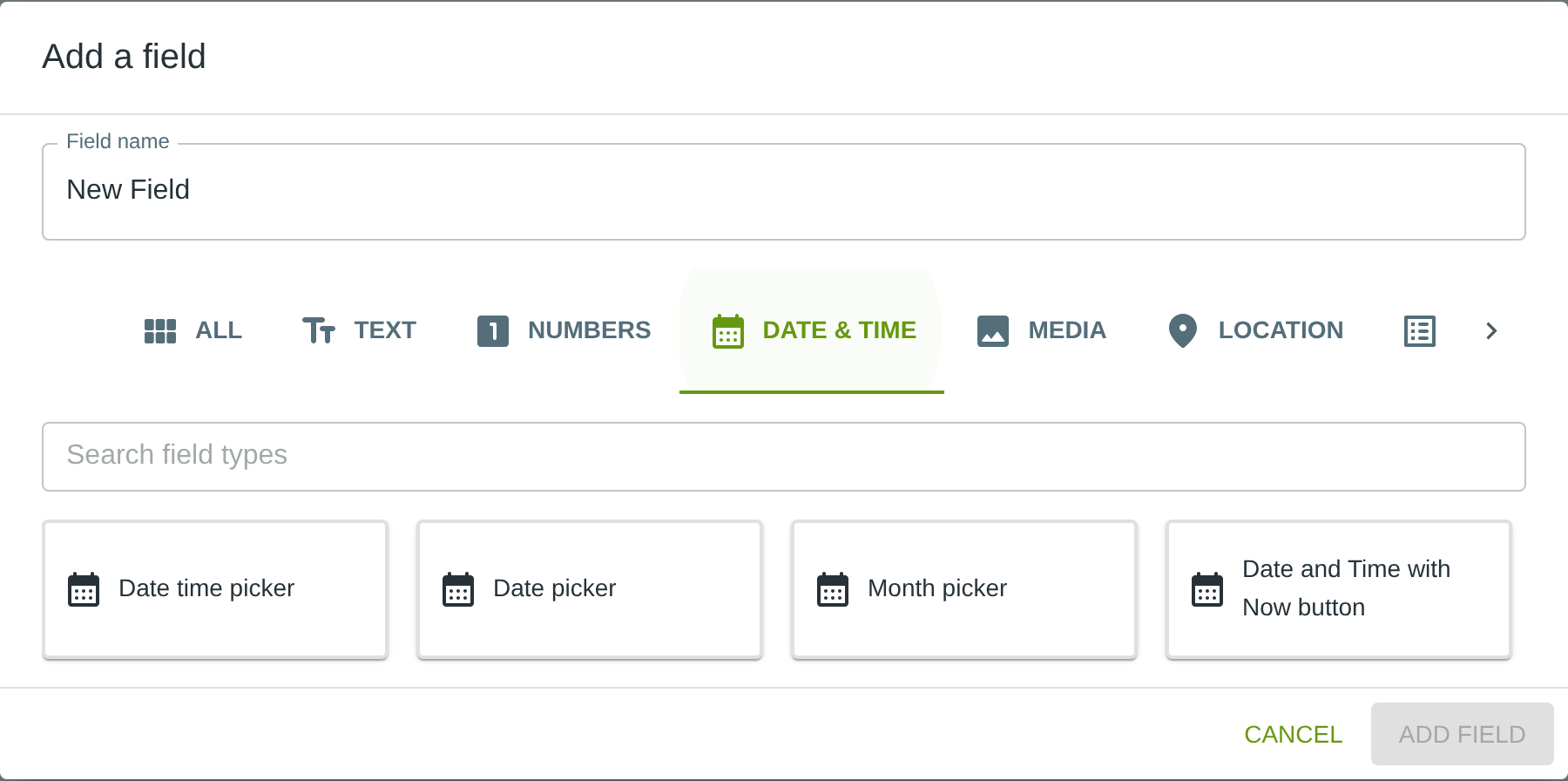
To add this field, open the ADD A FIELD dialog, navigate to the DATE & TIME tab, and click the Date picker card. Then click the ADD FIELD button in the lower right.
Configuring the Field
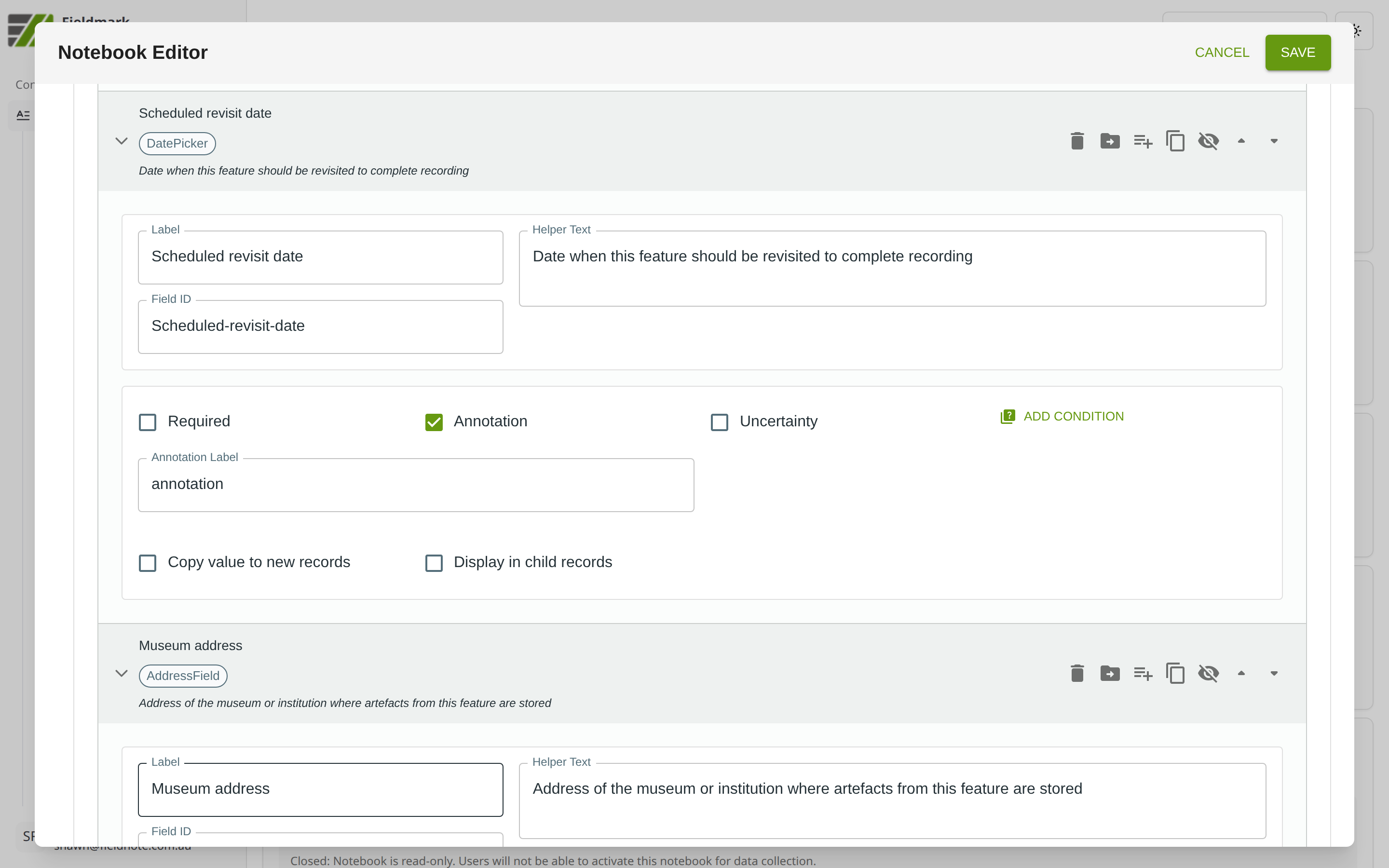
Click the field’s grey header bar to expand it and see its settings. For an overview of the settings shared by all fields — including Label, Helper Text, Field ID, and the field toolbar — see Field Identity and Field Toolbar.
Give the field a meaningful Label, review the auto-populated Field ID, and add any desired Helper Text.
Tips
Better than Date/Time with Now for historical or future dates (e.g., “Scheduled revisit date”, “Date of last disturbance”) where the time component is meaningless. The calendar picker interface helps users navigate to the correct date visually.
No timezone complications — because only the date is stored (YYYY-MM-DD), there is no risk of timezone-related data corruption. This makes Date Picker safe for any project regardless of how many timezones the team spans.
If you also need the time, use Date/Time with Now instead. Do not pair a Date Picker with a separate time field — use a single Date/Time with Now field for combined date-and-time capture.