 Fieldmark Documentation
Date time picker
How to add and configure a Date time picker field in the Notebook Editor.
What This Field Does
A Date time picker captures a date and time. It accepts arbitrary date and time entry and can optionally show a “Now” button for one-tap capture of the current timestamp — covering both the everyday “record this moment” use case and the historical / scheduled “enter a specific date” case in a single field.
Note: Date time picker is the recommended date-and-time field for new notebooks. The legacy Date and Time with Now button field type is now deprecated; enable Show “Now” button on this field to get the same one-tap capture behaviour.
Adding the Field
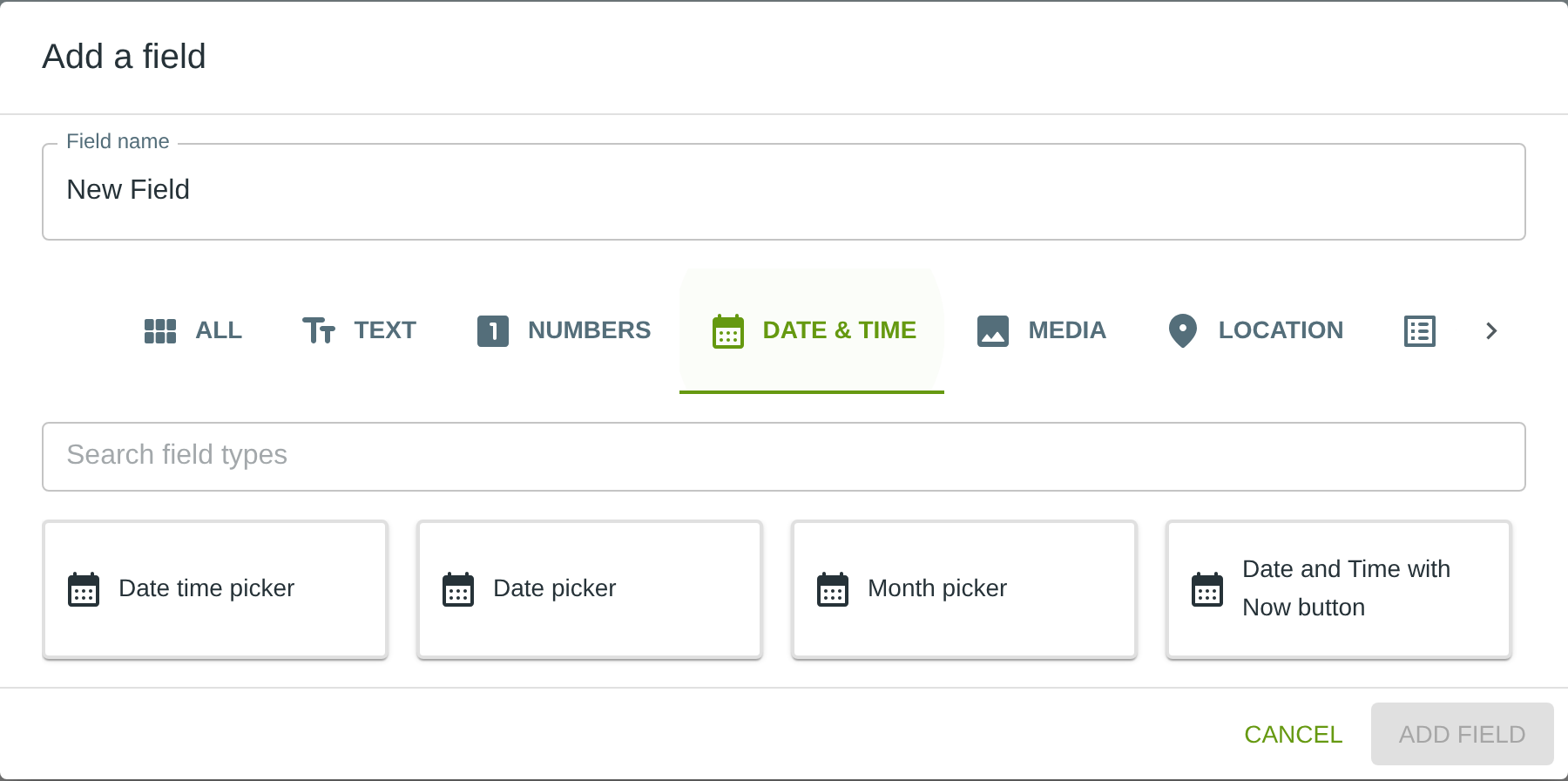
To add this field, open the ADD A FIELD dialog, navigate to the DATE & TIME tab, and click the Date time picker card. Then click the ADD FIELD button in the lower right.
Configuring the Field
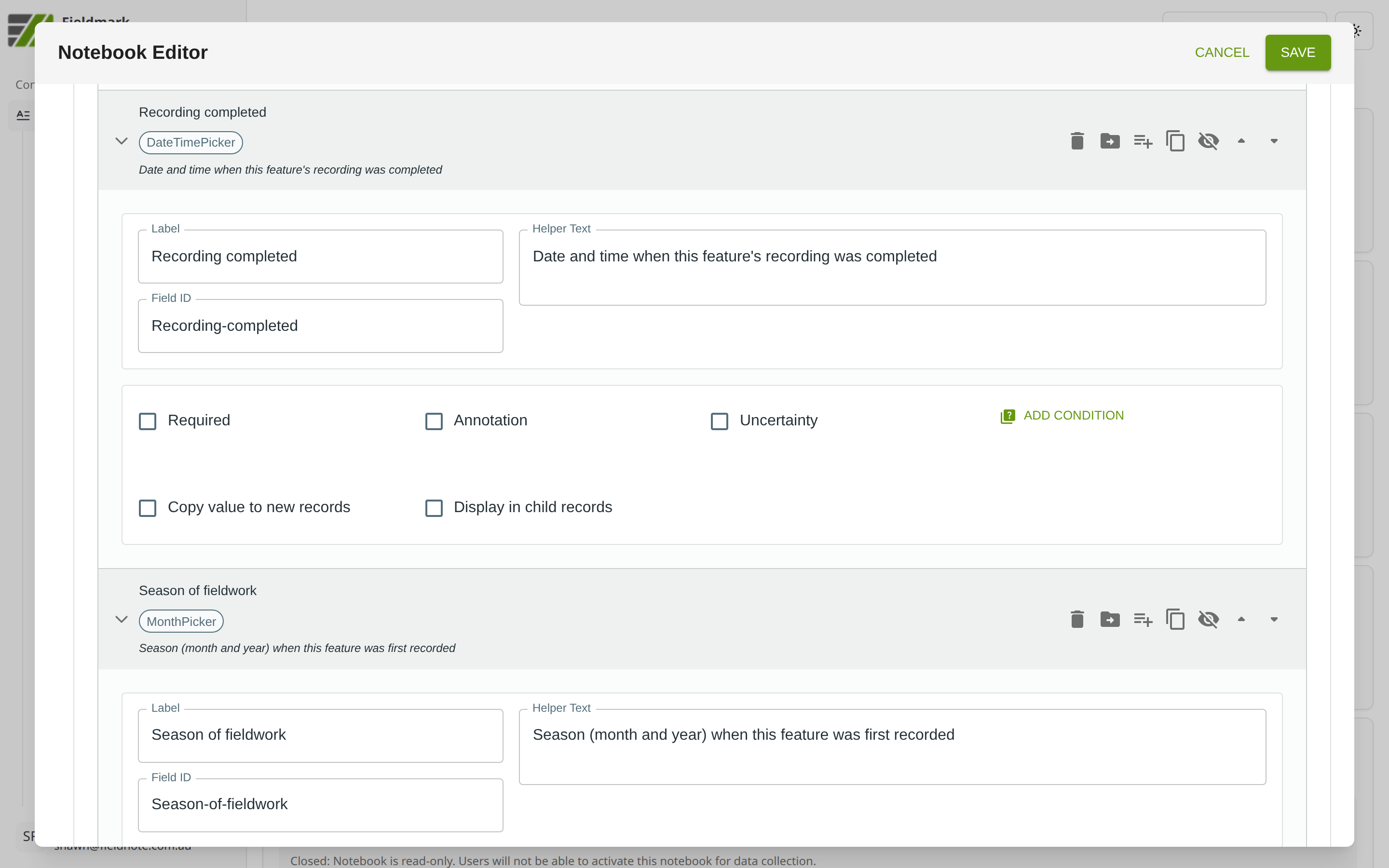
Click the field’s grey header bar to expand it and see its settings. For an overview of the settings shared by all fields — including Label, Helper Text, Field ID, and the field toolbar — see Field Identity and Field Toolbar.
Give the field a meaningful Label, review the auto-populated Field ID, and add any desired Helper Text.
Tips
Enable Show “Now” button when collectors will most often be capturing the current moment (observation timestamps, record creation time). The field still accepts manual entry, so historical or scheduled times remain possible.
Add Helper Text documenting the assumed timezone (e.g., “All times are recorded in AEST”) so the assumption is captured alongside the data — this is especially important when team members travel between timezones or collaborate across regions.
Consider the travel scenario — a team based in Sydney conducting fieldwork in Greece may have devices still showing Sydney time. Be explicit in the field’s Helper Text about which clock the timestamp represents.