 Fieldmark Documentation
Select Field (Hierarchical)
How to add and configure a Select Field (Hierarchical) in the Notebook Editor.
What This Field Does
A Select Field (Hierarchical) provides tree-structured navigation for selecting values from nested vocabularies — such as pottery typologies, biological taxonomies, geological classifications, or organisational hierarchies. Users expand and collapse branches to navigate to their selection, and the stored value can be either the full path (e.g., “Ceramics > Coarseware > Cooking pot”) or just the leaf node name.
Note: This field is a beta feature. The hierarchy structure must be defined via JSON editing — the Notebook Editor does not yet provide a visual tree editor. Also consider the display size of the field on mobile devices.
Adding the Field
To add this field, open the ADD A FIELD dialog, navigate to the CHOICE tab, and click the Select Field (Hierarchical) card. Then click the ADD FIELD button in the lower right.
Note: The CHOICE tab may not be visible in the tab bar initially — click the › arrow button on the right side of the tab bar to scroll until it appears.
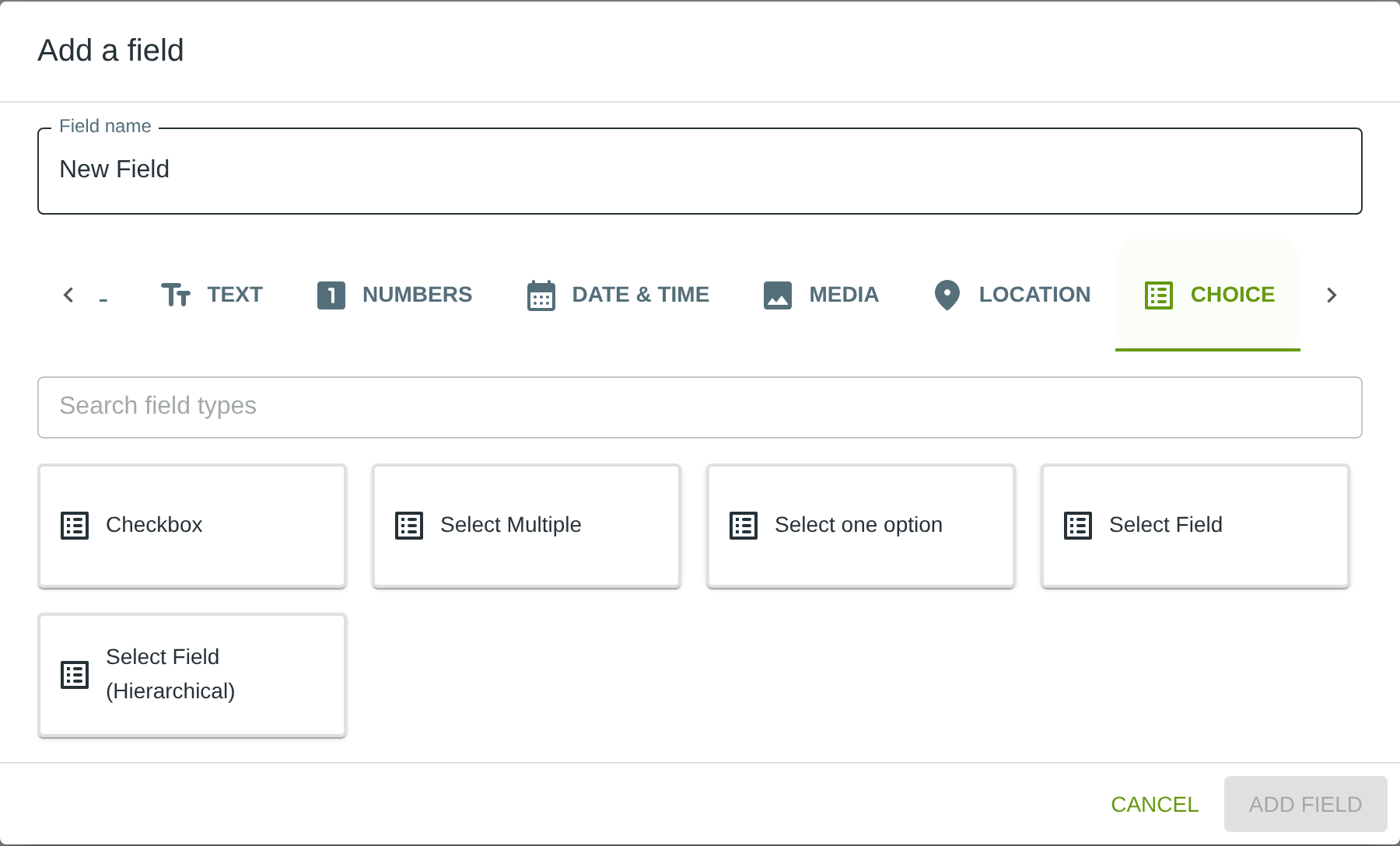
Configuring the Field
Click the field’s grey header bar to expand it and see its settings. For an overview of the settings shared by all fields — including Label, Helper Text, Field ID, and the field toolbar — see Field Identity and Field Toolbar.
Give the field a meaningful Label, review the auto-populated Field ID, and add any desired Helper Text.
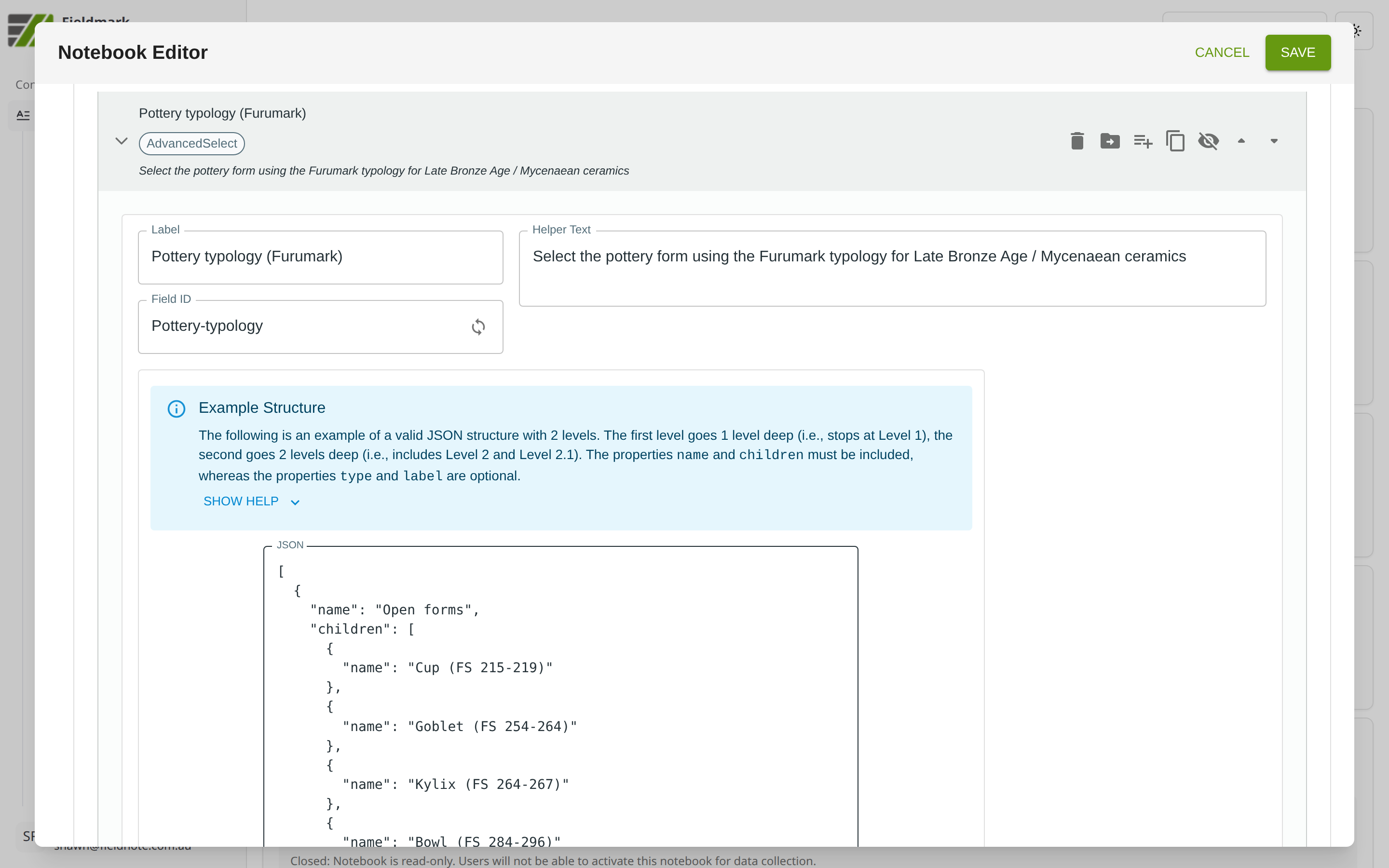
Select Field (Hierarchical)-Specific Settings
The Notebook Editor exposes only basic field properties for this field type. The hierarchy structure itself must be defined by editing the notebook JSON directly. A JSON editor is provided in the Editor UI, pre-populated with a simple template. Expanding the blue “Example Structure” info box displays an example of a valid JSON structure with two levels.
Setting |
What It Does |
|---|---|
Value type |
Controls what is stored when a selection is made: “full” stores the complete path (e.g., “Ceramics > Coarseware > Cooking pot”), while “child” stores only the selected node name (e.g., “Cooking pot”). |
The hierarchy tree (the optiontree structure) is not configurable
in the Notebook Editor and must be defined via JSON editing.
Tips
Excellent for structured taxonomies — pottery typologies, geological classifications, vegetation communities. The tree navigation feels natural for inherently hierarchical data.
Performance degrades above ~100 tree nodes. For very large taxonomies, consider splitting into cascading Select Field dropdowns instead (e.g., one for material, one for technique, one for form).
Once a selection is made, it cannot be cleared — there is no deselect mechanism. If users might need to undo a selection, include a top-level “– None –” node in the hierarchy.