 Fieldmark Documentation
Select one option
How to add and configure a Select one option field in the Notebook Editor.
What This Field Does
A Select one option field displays all choices as radio buttons, letting users pick exactly one. All options are visible simultaneously without opening a dropdown, which can be faster for short lists (~2–8 items). Use it when you want collectors to see every option at a glance — for example, a soil texture class, a condition rating, yes/no, or a Likert scale.
Adding the Field
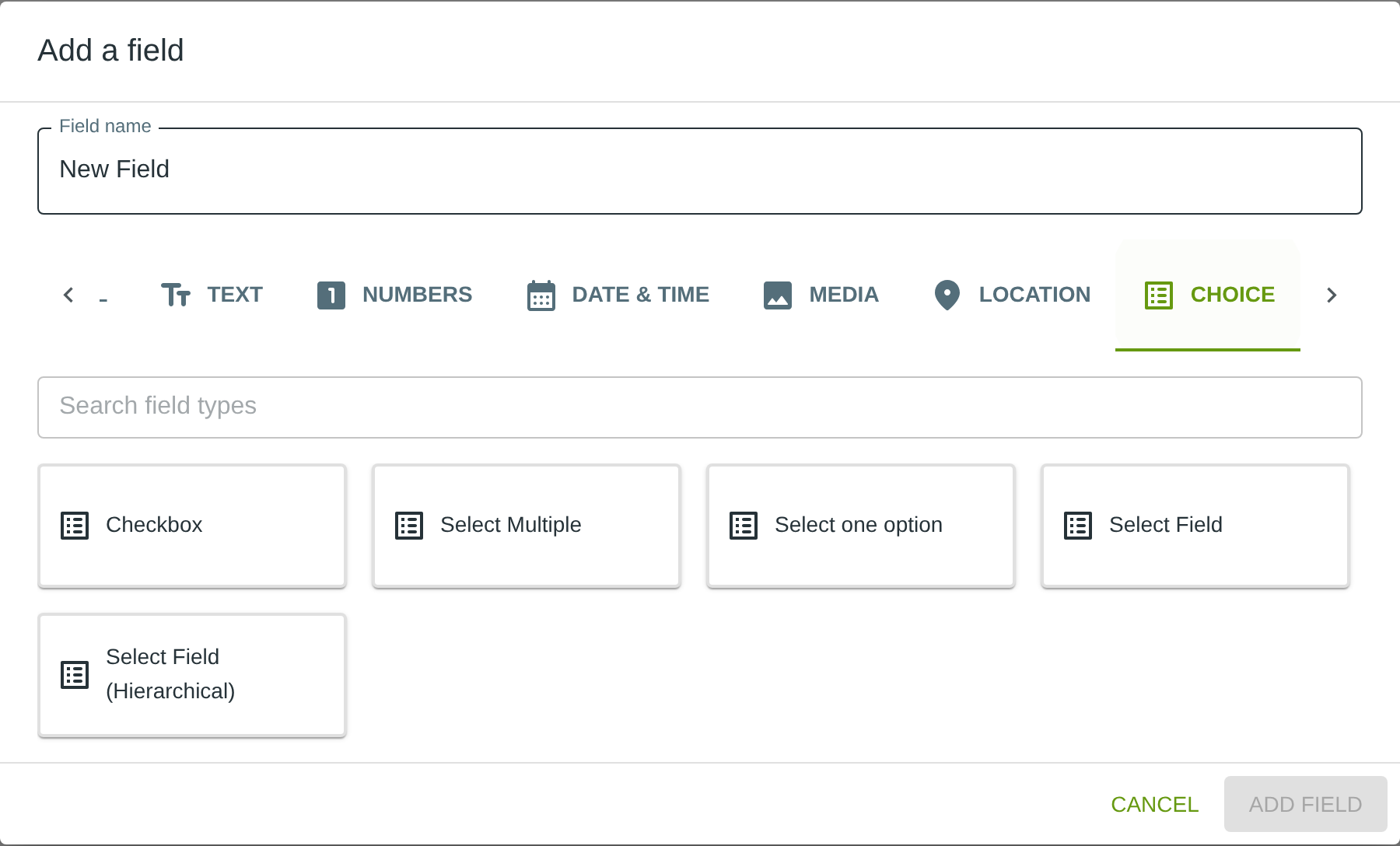
To add this field, open the ADD A FIELD dialog, navigate to the CHOICE tab, and click the Select one option card. Then click the ADD FIELD button in the lower right.
Note: The CHOICE tab may not be visible in the tab bar initially — click the › arrow button on the right side of the tab bar to scroll until it appears.
Configuring the Field
Click the field’s grey header bar to expand it and see its settings. For an overview of the settings shared by all fields — including Label, Helper Text, Field ID, and the field toolbar — see Field Identity and Field Toolbar.
Give the field a meaningful Label, review the auto-populated Field ID, and add any desired Helper Text.
Select one option-Specific Settings
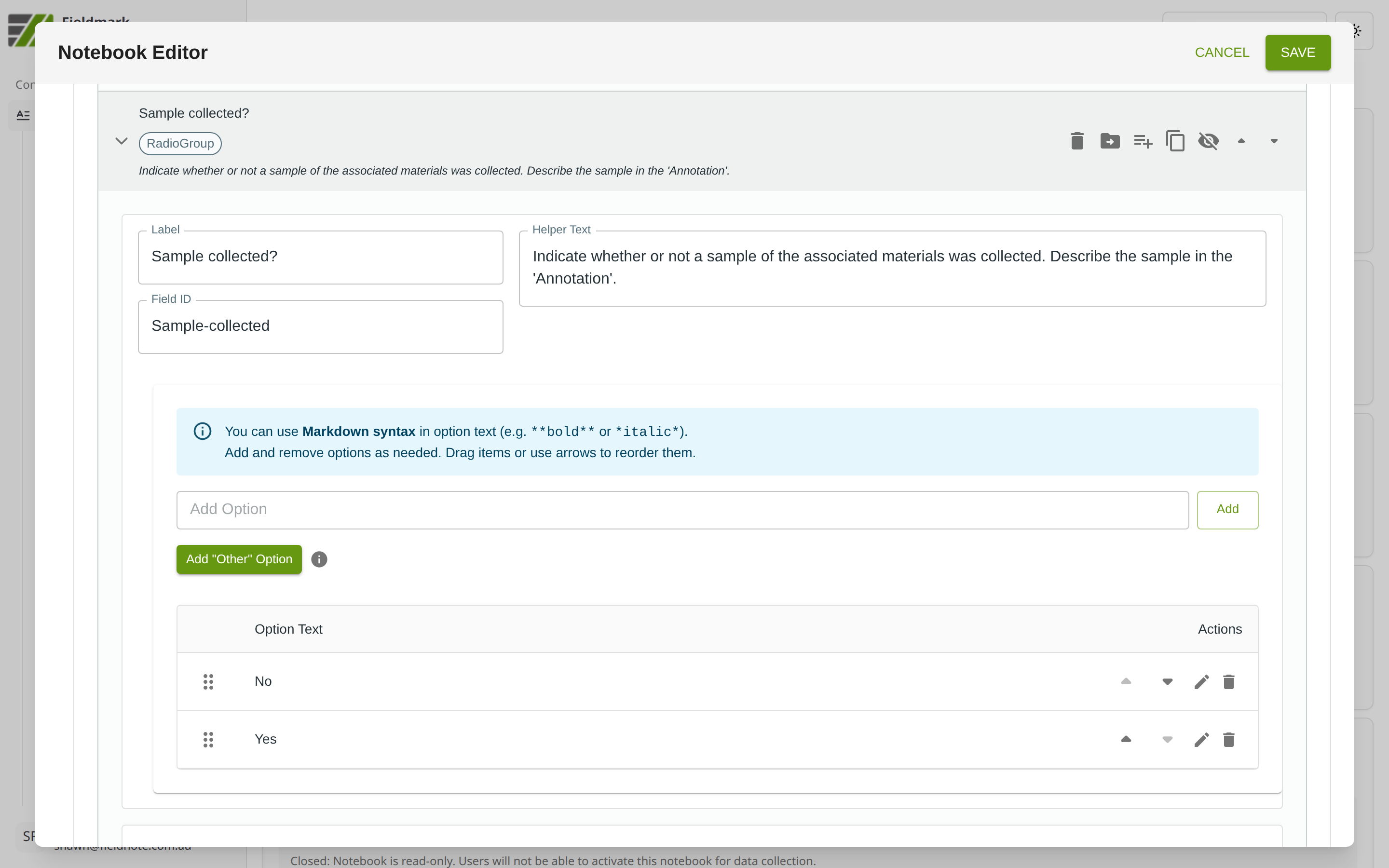
The Select one option field provides an options list identical in structure to the Select Field. Below the Markdown syntax info banner, you will find the Add Option input and a table listing all current options.
Setting |
What It Does |
|---|---|
Options list |
The choices displayed as radio buttons. Each option appears as a row in the table. |
Managing options:
To add an option: Type the option text in the Add Option input field and click Add (or press Enter).
To edit an option: Click the pencil icon in the option’s Actions column.
To reorder options: Drag the six-dot handle on the left of the option, or use the up/down arrow buttons in the Actions column.
To delete an option: Click the trash icon in the option’s Actions column.
Tips
Best for short lists of ca. 2–8 options where seeing every choice at once speeds selection. For longer lists, use Select Field (dropdown) to conserve screen space.
On small screens, err towards Select Field. Radio buttons take more vertical space than a dropdown; on mobile devices with small screens a long radio list requires scrolling, offsetting their speed advantage.
Option text supports Markdown formatting — use **bold** or *italic* to add emphasis to individual options.