 Fieldmark Documentation
Templated String
How to add and configure a Templated String field in the Notebook Editor.
What This Field Does
A Templated String concatenates text values from other fields using templates. It is required for Human-Readable Identifiers (HRIDs) — every notebook should have at least one Templated String configured as the record identifier to avoid fallback to an opaque string of characters. The generated value is read-only for data collectors; they see the result but cannot edit it.
Adding the Field
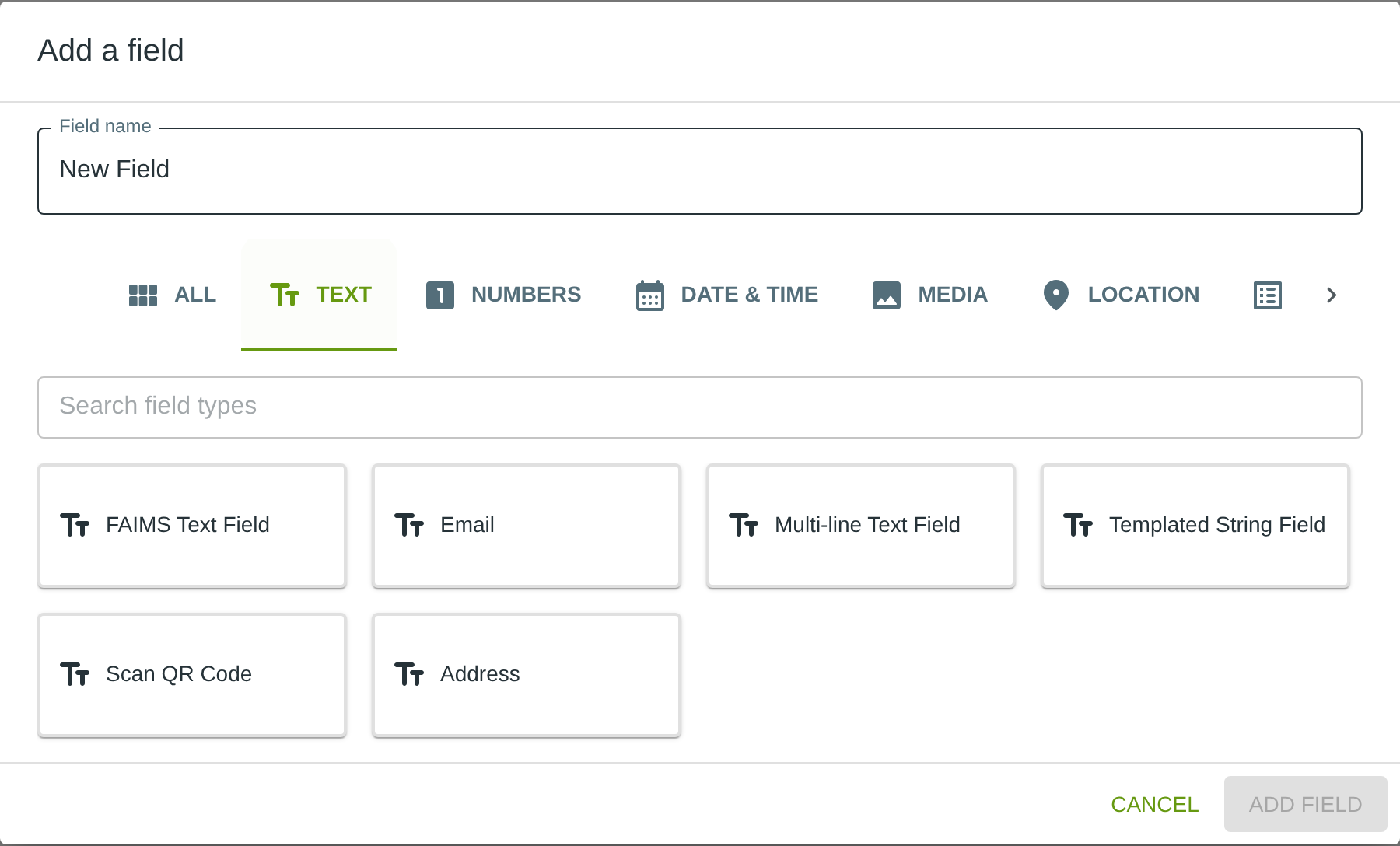
To add this field, open the ADD A FIELD dialog, navigate to the TEXT tab, and click the Templated String card. Then click the ADD FIELD button in the lower right.
Configuring the Field
Click the field’s grey header bar to expand it and see its settings. For an overview of the settings shared by all fields — including Label, Helper Text, Field ID, and the field toolbar — see Field Identity and Field Toolbar.
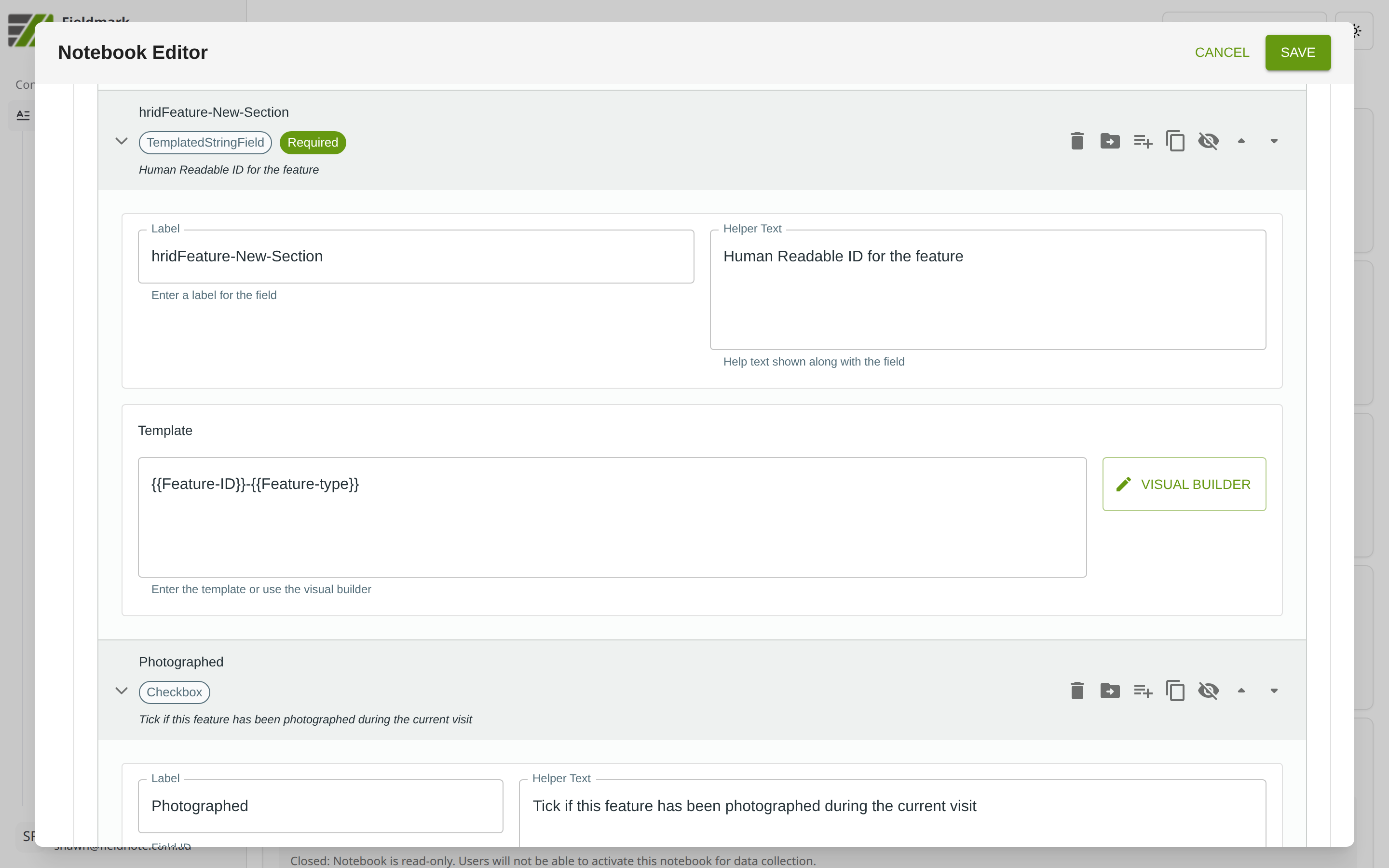
Give the field a meaningful Label, review the auto-populated Field ID, and add any desired Helper Text.
Templated String-Specific Settings
The Templated String’s key feature is the Template text area, which defines the generated value using field variable references. A VISUAL BUILDER button opens an interactive builder for constructing templates without typing the syntax manually.
Setting |
What It Does |
|---|---|
Template |
A text area where you define the template using literal text and field variable references in double-brace syntax (e.g., |
VISUAL BUILDER |
Opens an interactive builder for constructing the template by selecting fields and adding text segments without manual syntax. |
The template supports:
Variable substitution — inserts the value of another field (e.g., a site code or date field).
Conditional sections — includes text only when a referenced field has a value.
System variables — inserts values such as the record creator or creation time.
All referenced fields must be in the same form as the Templated String. A Templated String cannot reference another Templated String.
Tips
Every form needs at least one Templated String configured as the Human-Readable Identifier (HRID). Without it, records get opaque identifiers like “rec-5f8a9b3c” that are impossible to reference in conversation or field notes.
Combine meaningful components for readable identifiers — for example, site code + year + type + sequence (e.g., “PPAP-2026-CONTEXT-045”). This makes records self-describing.
Templated Strings are read-only for data collectors. They see the generated identifier but cannot edit it, preventing accidental corruption of the naming scheme.