 Fieldmark Documentation
Address
How to add and configure an Address field in the Notebook Editor.
What This Field Does
An Address field captures a postal address. When online autosuggest is available, the field can search and select an address from suggestions. When autosuggest is unavailable (or a manual override is needed), the field supports manual entry (either as free text or as structured components, depending on configuration).
Data is stored as a geocoding-compatible JSON object (GeocodeJSON-like)
with a human-readable display_name plus optional structured components.
Note: This field is a beta feature. It was developed for a specific client requirement and may have rough edges. Test thoroughly before relying on it for critical workflows.
Adding the Field
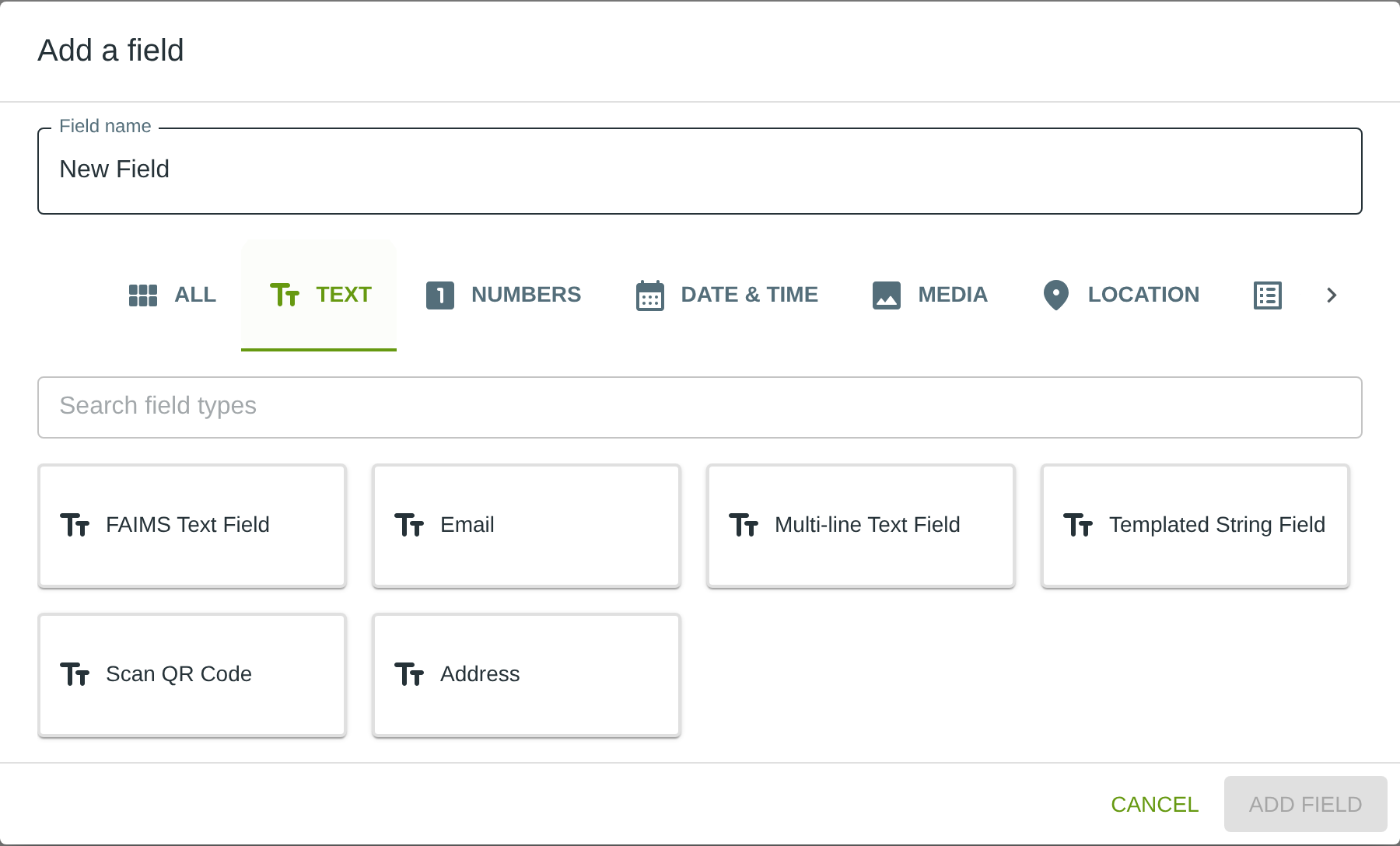
To add this field, open the ADD A FIELD dialog, navigate to the TEXT tab, and click the Address card. Then click the ADD FIELD button in the lower right.
Configuring the Field
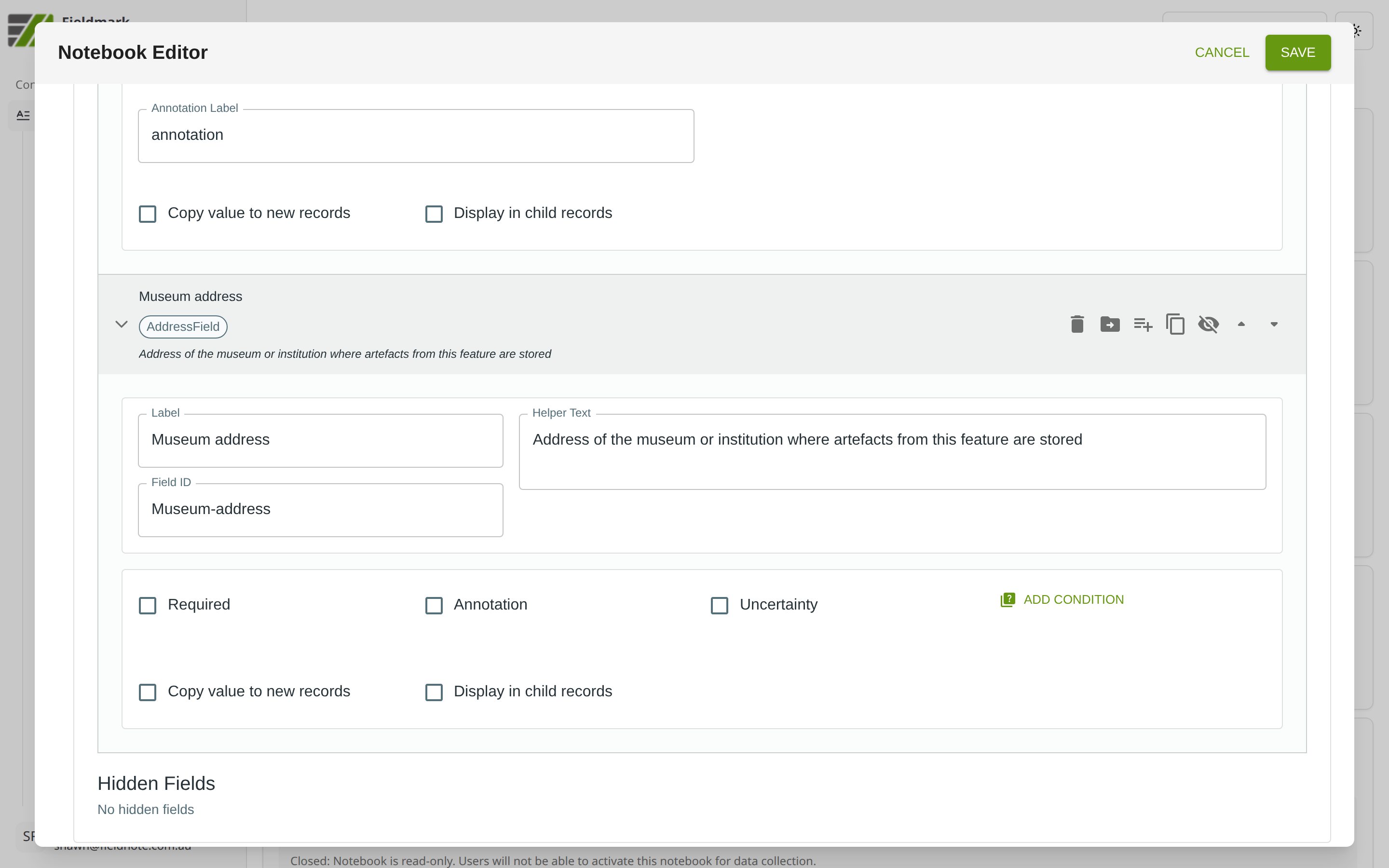
Click the field’s grey header bar to expand it and see its settings. For an overview of the settings shared by all fields — including Label, Helper Text, Field ID, and the field toolbar — see Field Identity and Field Toolbar.
Give the field a meaningful Label, review the auto-populated Field ID, and add any desired Helper Text.
Address Field Behaviours
The Address field supports multiple input flows depending on connectivity, service availability, and your configuration.
Online search (autosuggest)
When the app is online and an autosuggest service is configured, the field
shows a search box. Typing displays suggestions; selecting a suggestion
saves a structured address and a display_name.
Manual override (structured)
If the field is configured to allow structured manual entry, users can open the structured address editor (pencil icon / “Enter manually”) and fill out the address components (House Number, Street Name, Suburb, State, Postcode). This is used:
When autosuggest is unavailable (offline / no service), or
When autosuggest is available but the user wants to override or correct the selected result.
Fallback when search can’t find a result
If autosuggest is available but the user can’t find a suitable suggestion:
Structured manual entry enabled (Designer option: “Allow structured manual entry when autosuggest is unavailable”): a button below the search box allows users to enter the address manually using the structured component editor.
Structured manual entry disabled (Designer option off): the suggestion dropdown includes a special option: “Use this address as entered”, which stores the current typed search text as a free-text address.
Data Format
The stored value is JSON with these key fields:
display_name: the string shown in the form and in read-only views.address(optional): structured components when set via autosuggest or structured manual entry.manuallyEnteredAddress(optional): free-text entry (mutually exclusive withaddress).