 Fieldmark Documentation
Computed Value
How to add and configure a Computed Value field in the Notebook Editor.
What This Field Does
A Computed Value derives a number from an arithmetic expression over other fields in the same form — for example, multiplying a mass field by a count, or averaging two measurements. The generated value is read-only for data collectors; they see the result but cannot edit it, and it updates automatically as the fields it references change.
The field stays blank until every field its expression references has a usable numeric value, so a partially filled form shows no result rather than a misleading one.
Adding the Field
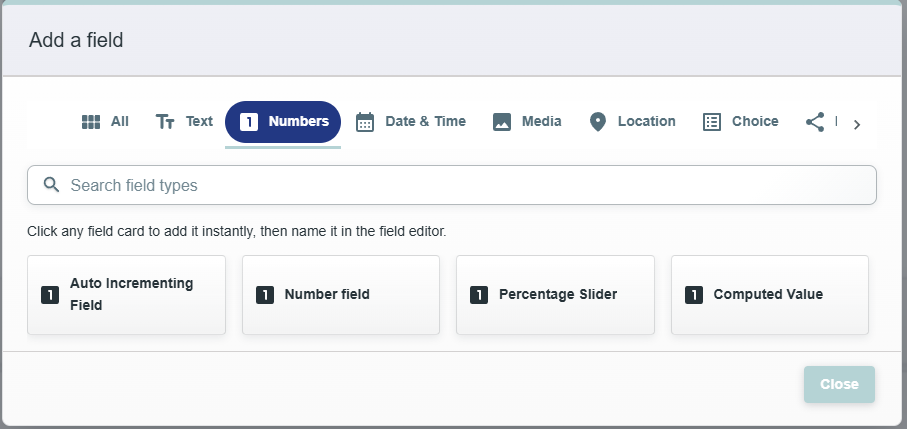
To add this field, open the ADD A FIELD dialog, navigate to the NUMBERS tab, and click the Computed Field card. Then click the ADD FIELD button in the lower right.
Configuring the Field
Click the field’s grey header bar to expand it and see its settings. For an overview of the settings shared by all fields — including Label, Helper Text, Field ID, and the field toolbar — see Field Identity and Field Toolbar.
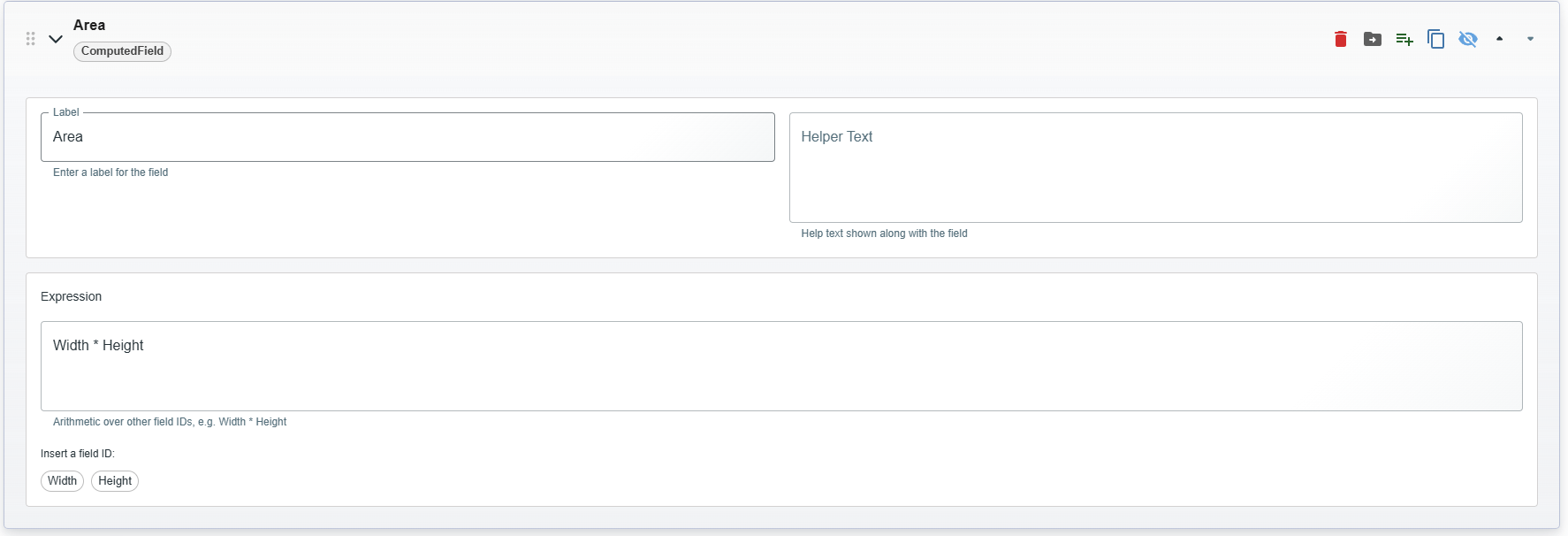
Give the field a meaningful Label, review the auto-populated Field ID, and add any desired Helper Text.
Computed Value-Specific Settings
The Computed Value’s key feature is the Expression text area, which
defines the generated value using arithmetic over field references. Each
referenced field is written by wrapping its Field ID in braces, e.g.
{Wet-Soil-Mass-g} * {Number-of-Samples}. Below the expression, a chip
is shown for each numeric field in the form; clicking a chip inserts that
field’s reference, which avoids typing the Field ID by hand.
Setting |
What It Does |
|---|---|
Expression |
A text area where you define the calculation using numbers, operators, and field references in single-brace syntax (e.g., |
Insert chips |
A chip for each numeric field in the form. Clicking one inserts its braced reference into the expression at the end. |
The expression supports:
Arithmetic — addition, subtraction, multiplication, division and remainder (
+ - * / %), with parentheses and a leading minus.Comparisons and logic —
>,<,>=,<=,==,!=, and&&/||, which evaluate to 1 (true) or 0 (false).Conditionals — a ternary
condition ? ifTrue : ifFalse, e.g.{Depth} > 0 ? {Depth} * 12 : 0.
Field references must be wrapped in braces so that Field IDs containing
characters such as hyphens (e.g. {Wet-Soil-Mass-g}) are read as a
single reference rather than as subtraction. All referenced fields must
be in the same form as the Computed Value, and only numeric fields can be
referenced. A Computed Value cannot reference another Computed Value or a
Templated String.
Tips
Use the field chips to build expressions rather than typing Field IDs by hand. Clicking a chip inserts the exact braced reference, so you avoid typos and do not need to remember a field’s ID.
The result stays blank until all referenced fields have values. This is intentional — a partially complete record shows no value rather than a misleading partial calculation.
Reference fields by their Field ID, not their Label. The Field ID is shown on each chip and is what goes inside the braces; it stays stable even if the field’s Label is later changed.
Computed Values are read-only for data collectors. They see the calculated result but cannot edit it, keeping the value consistent with its inputs.