 Fieldmark Documentation
Take point
How to add and configure a Take point field in the Notebook Editor.
What This Field Does
A Take GPS Point field captures a single GPS coordinate using the device’s geolocation services. One tap records latitude, longitude, and accuracy metadata, with altitude, speed, and heading available on some platforms. Use it for recording feature locations, site coordinates, survey waypoints, or any spatial data where a single point is sufficient.
Adding the Field
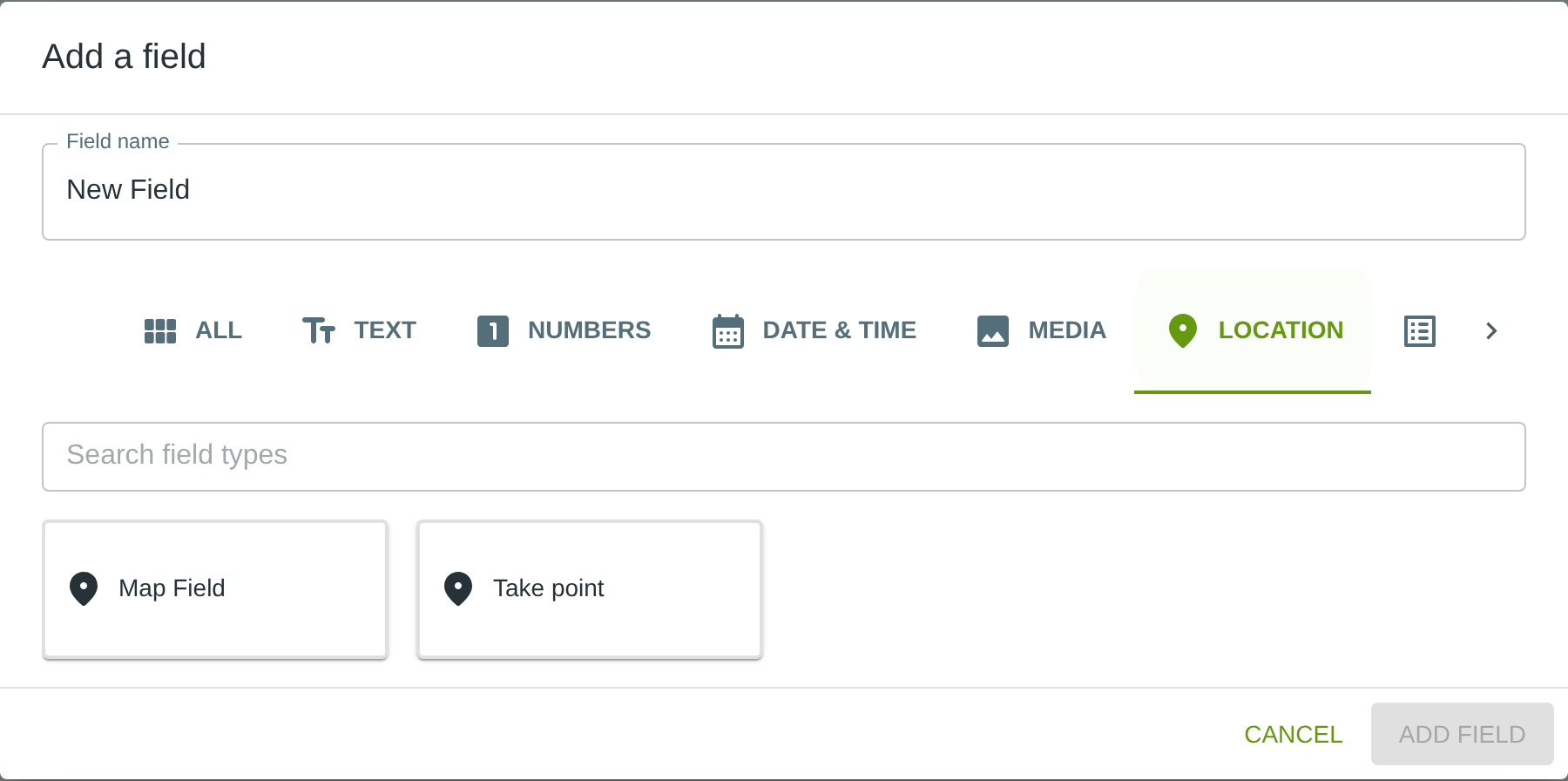
To add this field, open the ADD A FIELD dialog, navigate to the LOCATION tab, and click the Take point card. Then click the ADD FIELD button in the lower right.
Note: The LOCATION tab may not be visible in the tab bar initially — click the › arrow button on the right side of the tab bar to scroll until it appears.
Configuring the Field
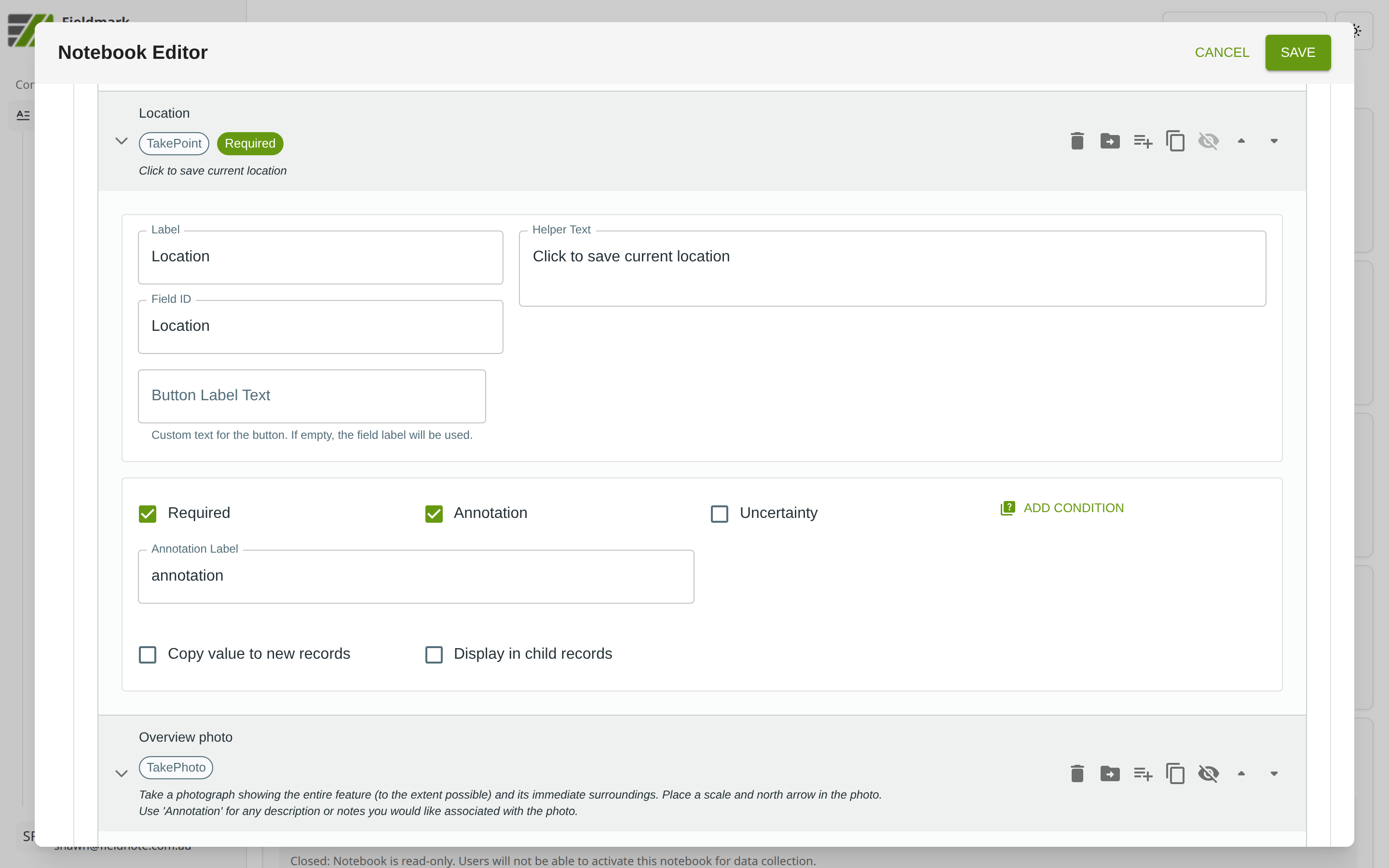
Click the field’s grey header bar to expand it and see its settings. For an overview of the settings shared by all fields — including Label, Helper Text, Field ID, and the field toolbar — see Field Identity and Field Toolbar.
Give the field a meaningful Label, review the auto-populated Field ID, and add any desired Helper Text.
Take GPS Point-Specific Settings
Setting |
What It Does |
|---|---|
Button Label Text |
Custom text for the location button. If left empty, the field label will be used. |
Tips
Works best on mobile devices — desktop browsers provide less accurate location data. On mobile, GPS accuracy is typically within a few metres under open sky.
Enable Annotation for GPS points so collectors can note signal quality, obstacles (tree canopy, buildings), or whether the point was taken at the feature itself or at an offset location.
If the GPS seems stuck, open the device’s Maps app briefly to refresh the GPS fix, then return to the form. This is a known workaround for an occasional OS-level GPS caching issue.