 Fieldmark Documentation
Map field
How to add and configure a Map field in the Notebook Editor.
What This Field Does
A Map Input field provides an interactive map for drawing spatial features — points, lines, and polygons — directly on base map tiles. Use it for delineating site boundaries, recording transect routes, outlining excavation areas, or any spatial data that requires geometry beyond a single GPS coordinate. It uses OpenLayers for map rendering and supports offline tile caching.
Adding the Field
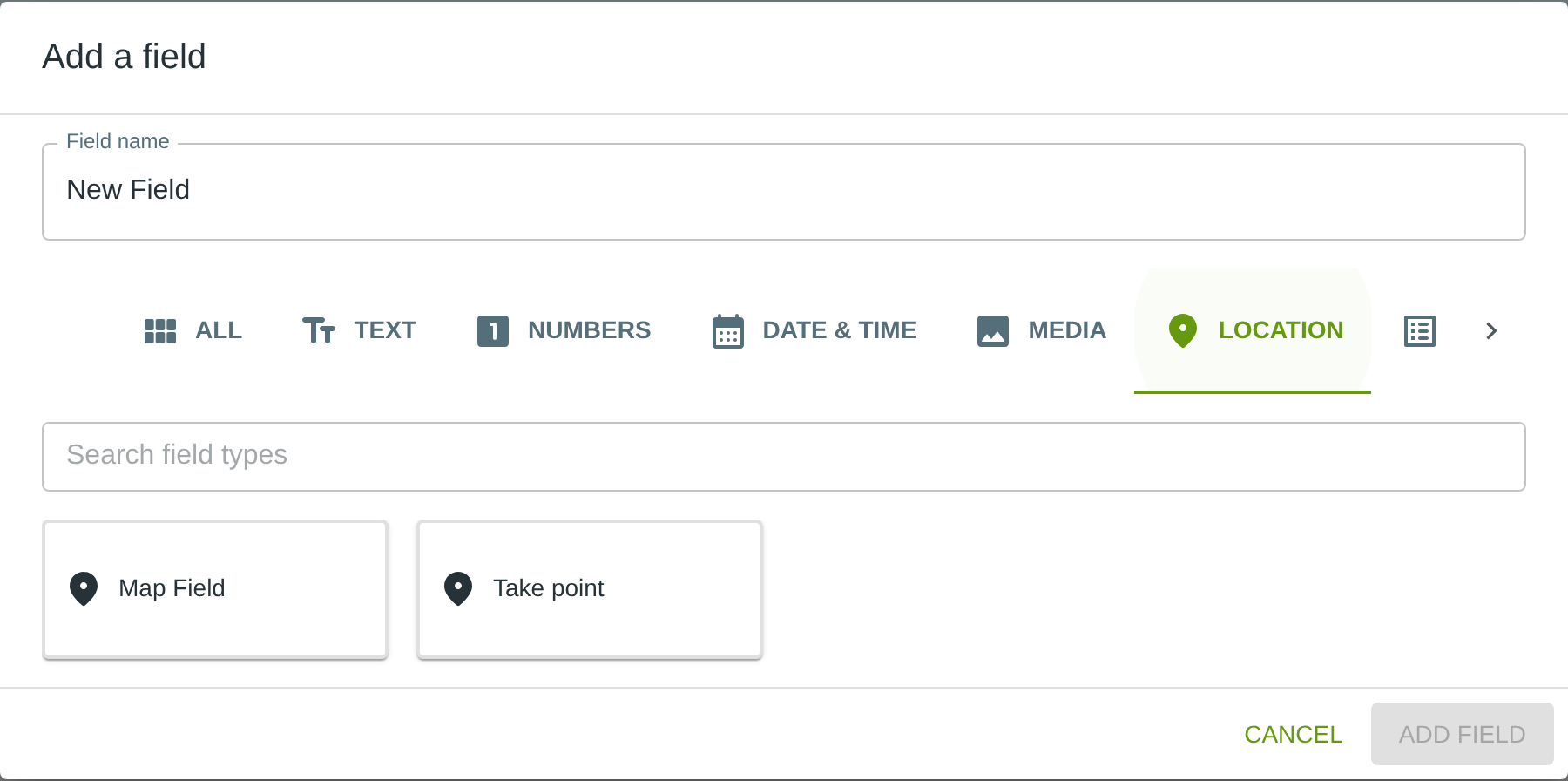
To add this field, open the ADD A FIELD dialog, navigate to the LOCATION tab, and click the Map Field card. Then click the ADD FIELD button in the lower right.
Note: The LOCATION tab may not be visible in the tab bar initially — click the › arrow button on the right side of the tab bar to scroll until it appears.
Configuring the Field
Click the field’s grey header bar to expand it and see its settings. For an overview of the settings shared by all fields — including Label, Helper Text, Field ID, and the field toolbar — see Field Identity and Field Toolbar.
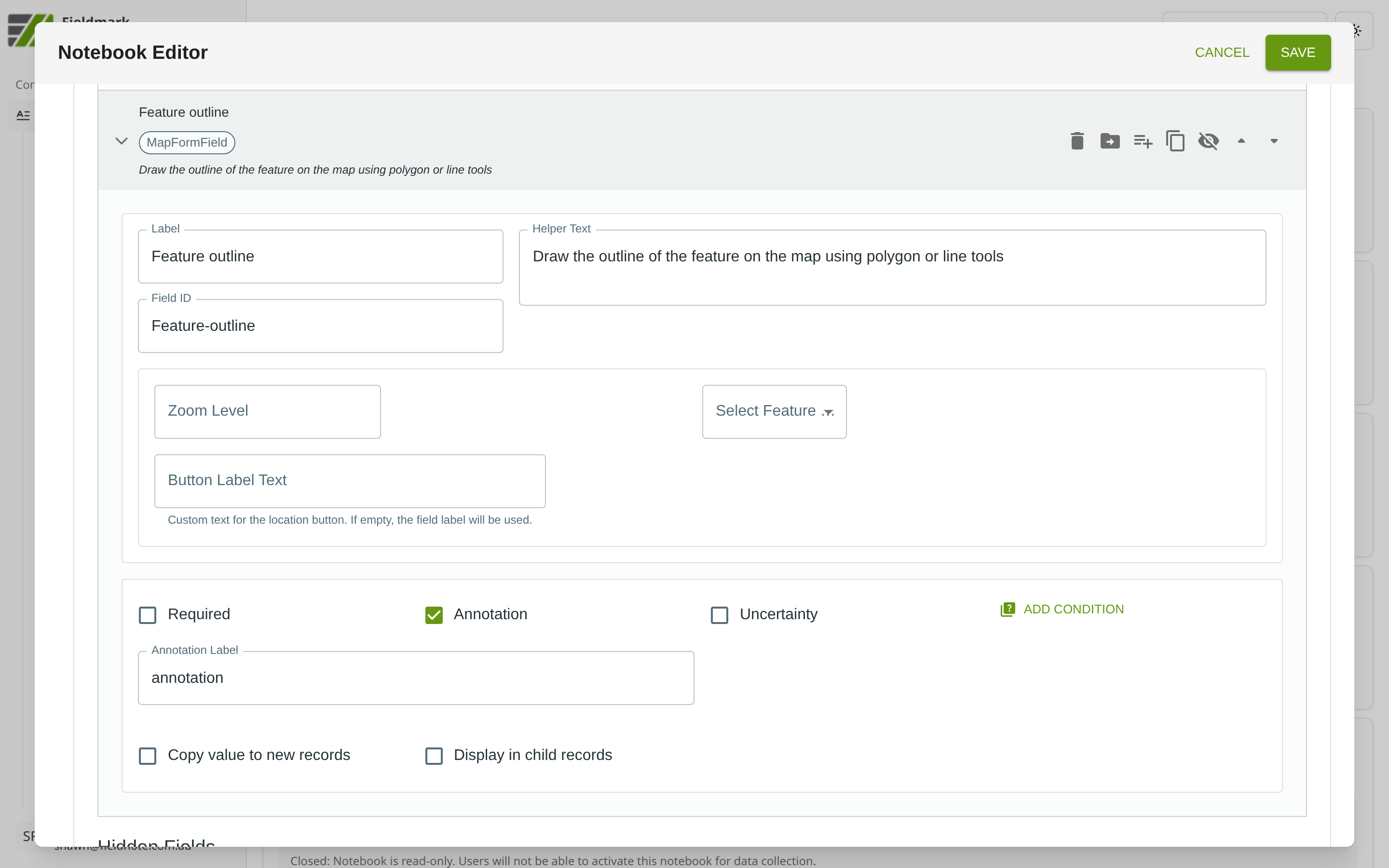
Give the field a meaningful Label, review the auto-populated Field ID, and add any desired Helper Text.
Map Input-Specific Settings
The Map Input provides settings for controlling the map display and drawing mode:
Setting |
What It Does |
|---|---|
Zoom Level |
The initial zoom level of the map when the field is opened. Higher values show more detail. |
Select Feature |
The type of geometry the collector can draw: Point, LineString, or Polygon. Each field supports only one geometry type. |
Button Label Text |
Custom text for the location button. If left empty, the field label will be used. |
Display set to current point button |
Includes a button in the map input screen to select the current point if the map is configured for point input |
Tips
Best used on tablets or desktops where the screen is large enough for accurate drawing. Drawing precise polygons on a phone screen can be difficult.
Configure offline maps in the Fieldmark app, not the Notebook Editor. Downloading maps requires internet for initial tile loading. To prepare for offline use, tap the three-line menu icon (☰) in the Fieldmark app and select Offline Maps to download OpenStreetMap tiles for your field area; plan accordingly for remote locations. This feature is experimental.
Each field supports only one geometry type and one feature. If you need to record both a point and a polygon for the same feature, use two separate Map Input fields. Drawing a new feature replaces the existing one.