
Skip to content
Fieldmark Fieldmark Documentation

Quick Start

  • About Fieldmark
  • Getting Started as a Data Collector
  • Getting Started as a Notebook Author
  • Managing Fieldmark
  • Support
  • Data Collection
    • Getting Started as a Data Collector
    • Authentication
    • Logging in to Fieldmark
    • Understanding the parts of a Notebook
    • Using your Notebook
    • Entering Data
    • Activating your Notebook
    • Fieldmark Field types
    • Operating Systems
    • Notebook Invitations
    • Marginal data
    • Child and Related Records
    • Synchronisation
  • Notebook Design
    • Getting Started as a Notebook Author
    • Notebook Structure
    • Notebook Templates
    • Field Type Reference Table
    • Field Selection Best Practices Guide
    • Conditions on Sections and Fields
  • Field Types
    • Shared Settings and Controls
    • Text Fields
    • Number Fields
    • Date and Time Fields
    • Media Fields
    • Location Fields
    • Choice Fields
    • Relationship Fields
    • Display Fields
    • Designing Forms for Fieldwork
  • Data Export and Integration
    • Exporting your data
    • API Access Tokens
    • Integrations
  • Administration
    • Managing Fieldmark
    • Using the Dashboard
    • Notebook Administration
    • User Roles and Permissions Guide
    • User Roles and Permissions Guide (Task-Organised)
    • Roles and Permissions
  1. Docs
  2. Field Types
  3. Relationship Fields
  4. Add Related Record
Edit on GitHub View source

Add Related Record

How to add and configure an Add Related Record field in the Notebook Editor.


What This Field Does

A Related Records field creates connections between records, supporting both hierarchical parent-child relationships (e.g., site → trench → context → find) and semantic peer associations with qualified vocabulary pairs (e.g., “cuts / is cut by”, “fills / is filled by”). It is the only relationship field type in Fieldmark and is essential for modelling the structured data relationships common in archaeological and field science recording.

Adding the Field

To add this field, open the ADD A FIELD dialog, navigate to the RELATIONSHIP tab, and click the Add Related Record card. Then click the ADD FIELD button in the lower right.

Note: The RELATIONSHIP tab may not be visible in the tab bar initially — click the › arrow button on the right side of the tab bar to scroll until it appears.
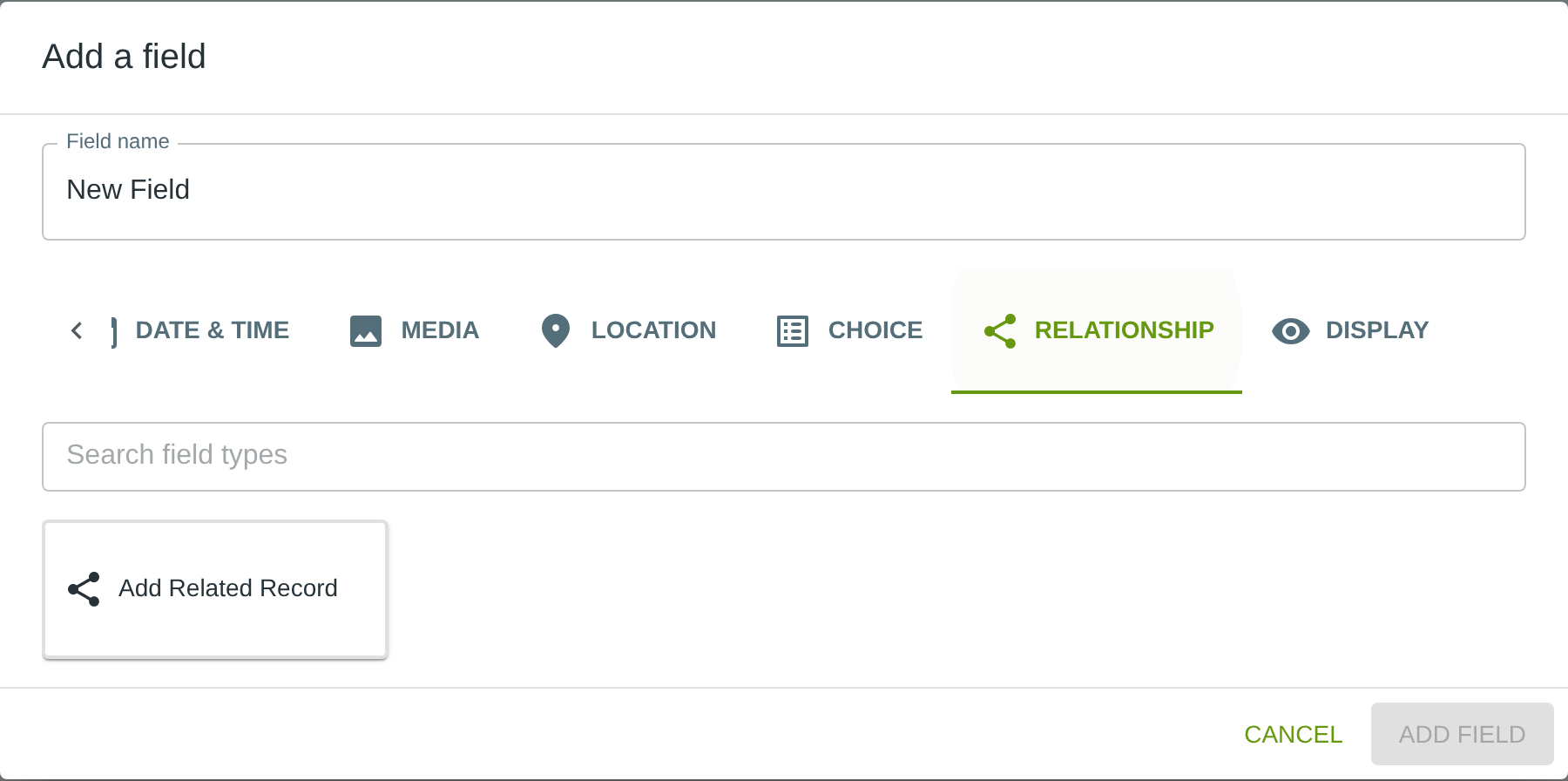
Adding Related Records — the RELATIONSHIP tab in the ADD A FIELD dialog

Configuring the Field

Click the field’s grey header bar to expand it and see its settings. For an overview of the settings shared by all fields — including Label, Helper Text, Field ID, and the field toolbar — see Field Identity and Field Toolbar.

Give the field a meaningful Label, review the auto-populated Field ID, and add any desired Helper Text.
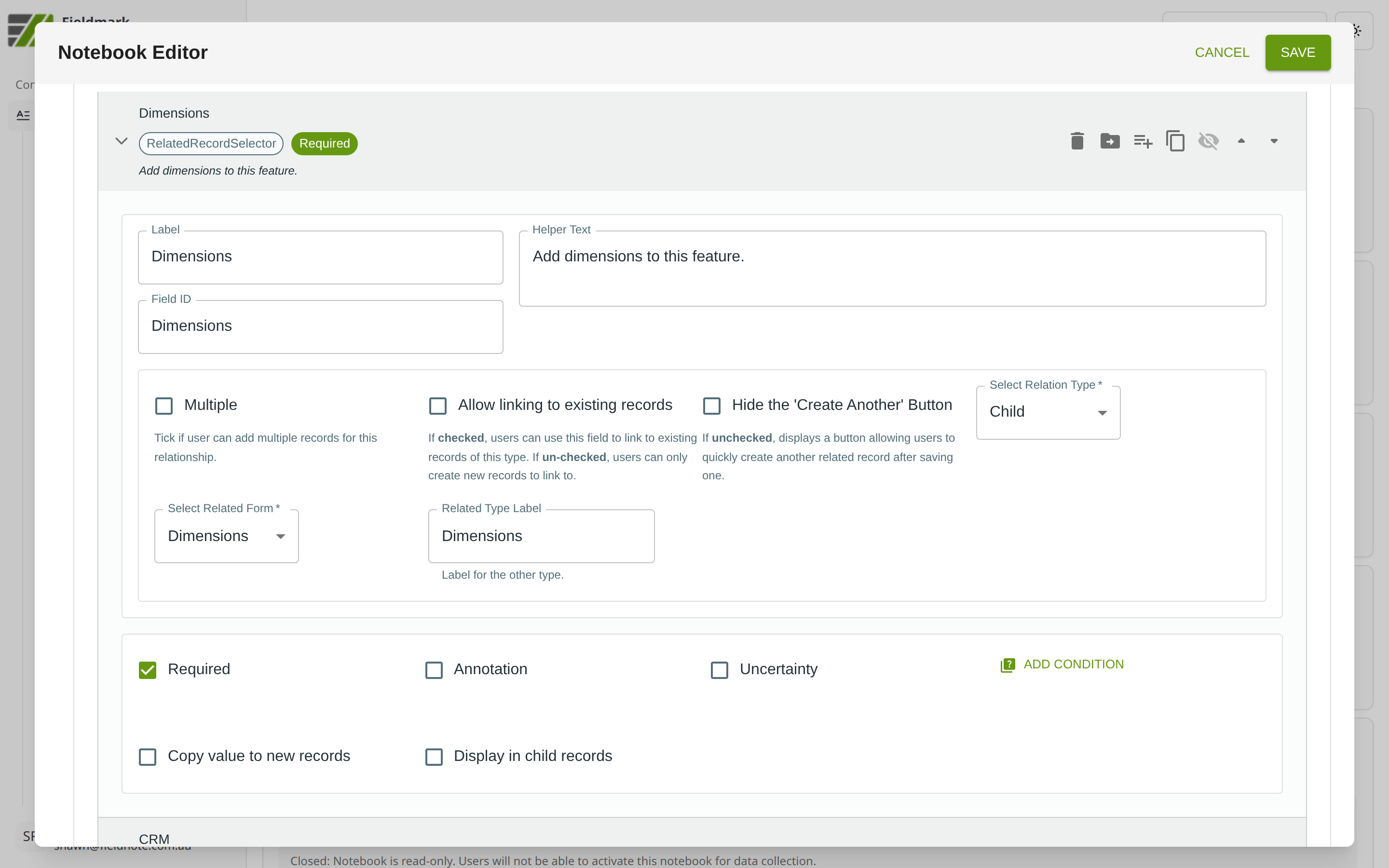
Related Records configuration in the {{Notebook}} Editor

Related Records-Specific Settings

The Related Records field provides several settings for defining how records are connected:

Setting

What It Does

Multiple

When enabled, allows linking to more than one related record.

Allow linking to existing records

When enabled, collectors can link to records that already exist rather than only creating new ones.

Hide the ‘Create Another’ Button

When unchecked (default), displays a button allowing users to quickly create another related record after saving one. Check this to hide that button.

Select Relation Type

Choose Child for hierarchical parent-child relationships or Linked for peer-to-peer associations.

Select Related Form

Selects which form type this field links to (e.g., “Context”, “Find”, “Sample”).

Related Type Label

A human-readable label for the related form type, displayed in the UI (e.g., “Context Record”).

Shared Field Options

Configure any of the shared field options as needed.

For settings shared across all field types — including Required, Annotation, Uncertainty, Conditions, Copy value to new records, and Display in child records — see Field Options.

Tips

  • Think carefully about relationship direction and semantics. “Context 5 cuts Context 8” is different from “Context 8 is cut by Context 5”. For linked relationships, vocabulary pairs (configured via JSON) capture both directions automatically.

  • Performance degrades above ~50 relationships per record. Design the data model to keep relationship counts manageable — split dense networks across multiple Related Records fields if needed.

  • Child relationships create a “Finish and New” workflow — after saving a child record, collectors can immediately create another child of the same type. This streamlines bulk data entry (e.g., recording multiple finds from one context).

← Relationship Fields Display Fields  →

Page contents

  • Add Related Record
    • What This Field Does
    • Adding the Field
    • Configuring the Field
      • Related Records-Specific Settings
      • Shared Field Options
    • Tips
  • Features
  • About Wagtail
  • Services
  • Blog
  • Packages
  • Developers
© Copyright 2026. FAIMS Project
Created using Sphinx Wagtail Theme 6.5.0 and Sphinx 8.2.3