 Fieldmark Documentation
Take Photo
How to add and configure a Take Photo field in the Notebook Editor.
What This Field Does
A Take Photo field integrates the device camera for direct photo capture, with an option to upload images (e.g., from the device’s gallery). Photos are automatically compressed to JPEG at 60% quality and scaled to a maximum width of 1920 px, balancing image quality with storage and sync performance. Multiple photos can be attached to a single field. Use it for artefact photography, site overview shots, condition recording, or any visual documentation.
Adding the Field
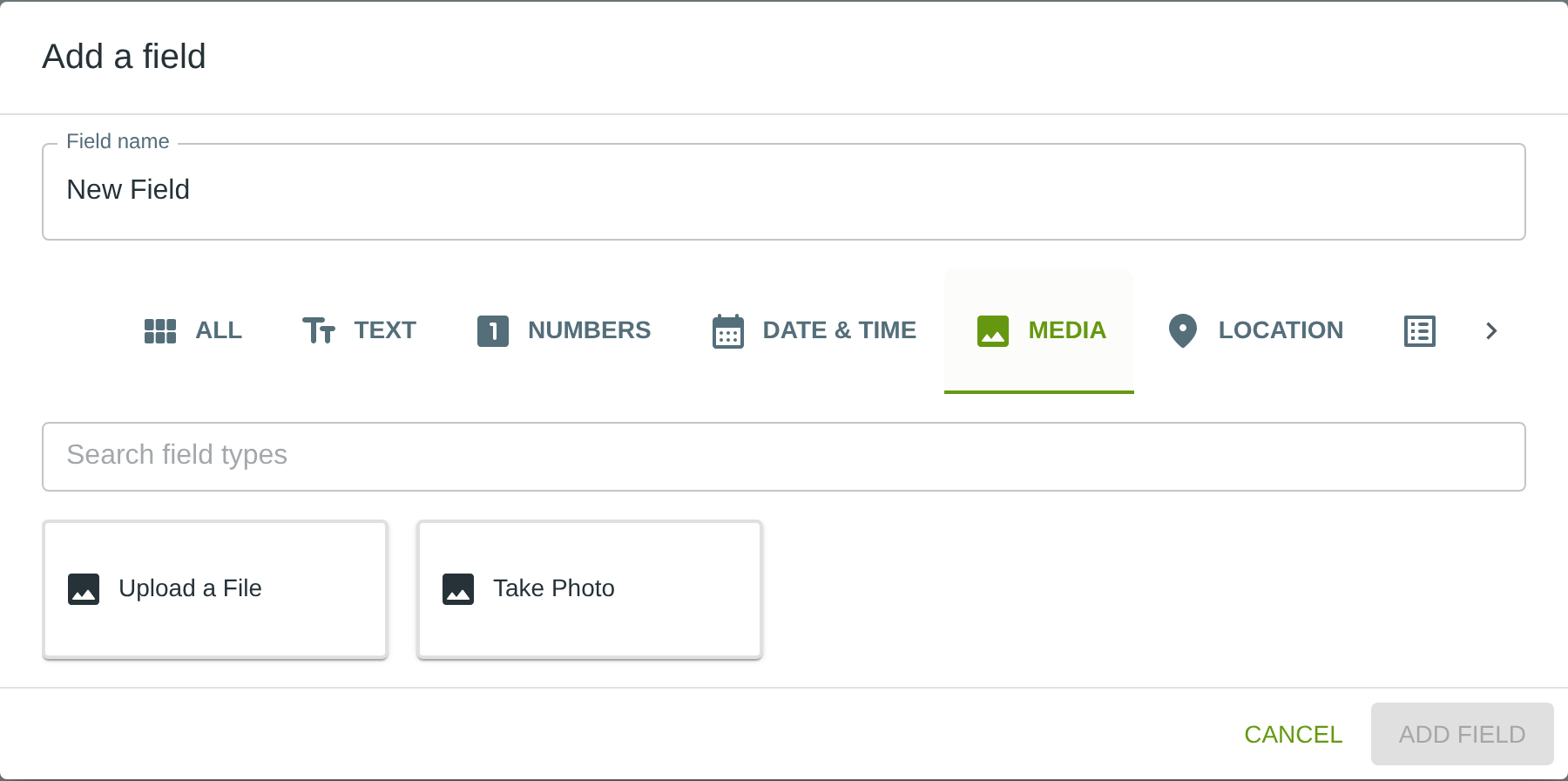
To add this field, open the ADD A FIELD dialog, navigate to the MEDIA tab, and click the Take Photo card. Then click the ADD FIELD button in the lower right.
Configuring the Field
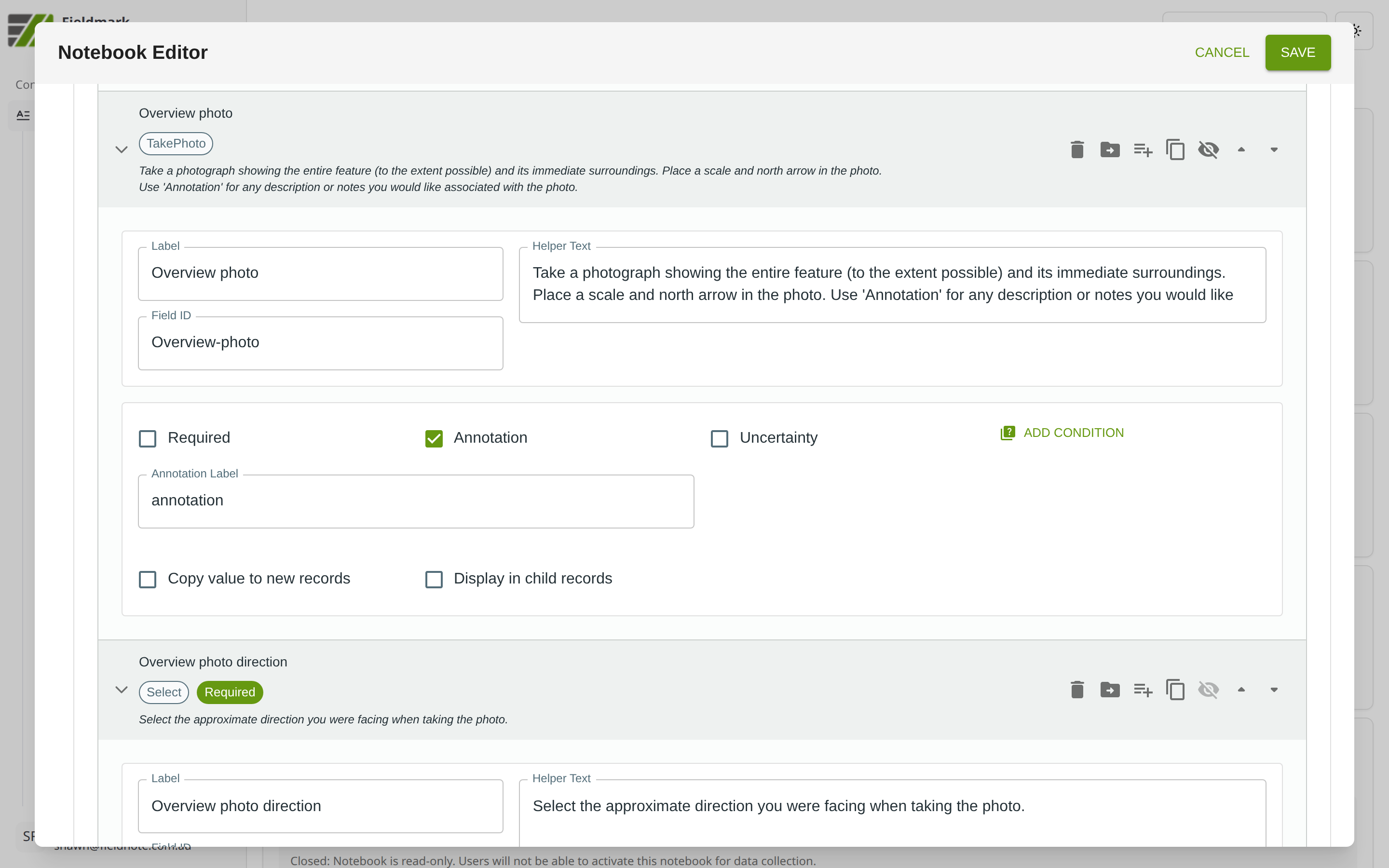
Click the field’s grey header bar to expand it and see its settings. For an overview of the settings shared by all fields — including Label, Helper Text, Field ID, and the field toolbar — see Field Identity and Field Toolbar.
Give the field a meaningful Label, review the auto-populated Field ID, and add any desired Helper Text.
Tips
Preferred over Attach File for camera-first workflows. Take Photo opens the device camera directly for immediate capture, making it faster when photos are the primary media type. Upload of photos from the device’s gallery or captured using an external camera remains possible.
EXIF data including GPS coordinates is preserved on native mobile platforms — useful for spatial analysis but be aware of privacy implications if data will be shared publicly. GPS is not available on the web platform.
Consider how many photos per record are practical. Performance degrades beyond ~20 photos per field due to storage and sync constraints. For large photo sets, use multiple Take Photo fields or a separate child form for photography.