 Fieldmark Documentation
RichText
How to add and configure a RichText field in the Notebook Editor.
What This Field Does
A Rich Text field displays formatted instructional content within a form — it is a display-only field, not a data entry field. Collectors see the content but cannot edit or enter data into it. Use it for section headings, methodological instructions, safety warnings, procedural guidance, or any static text that helps orient collectors within the form.
Adding the Field
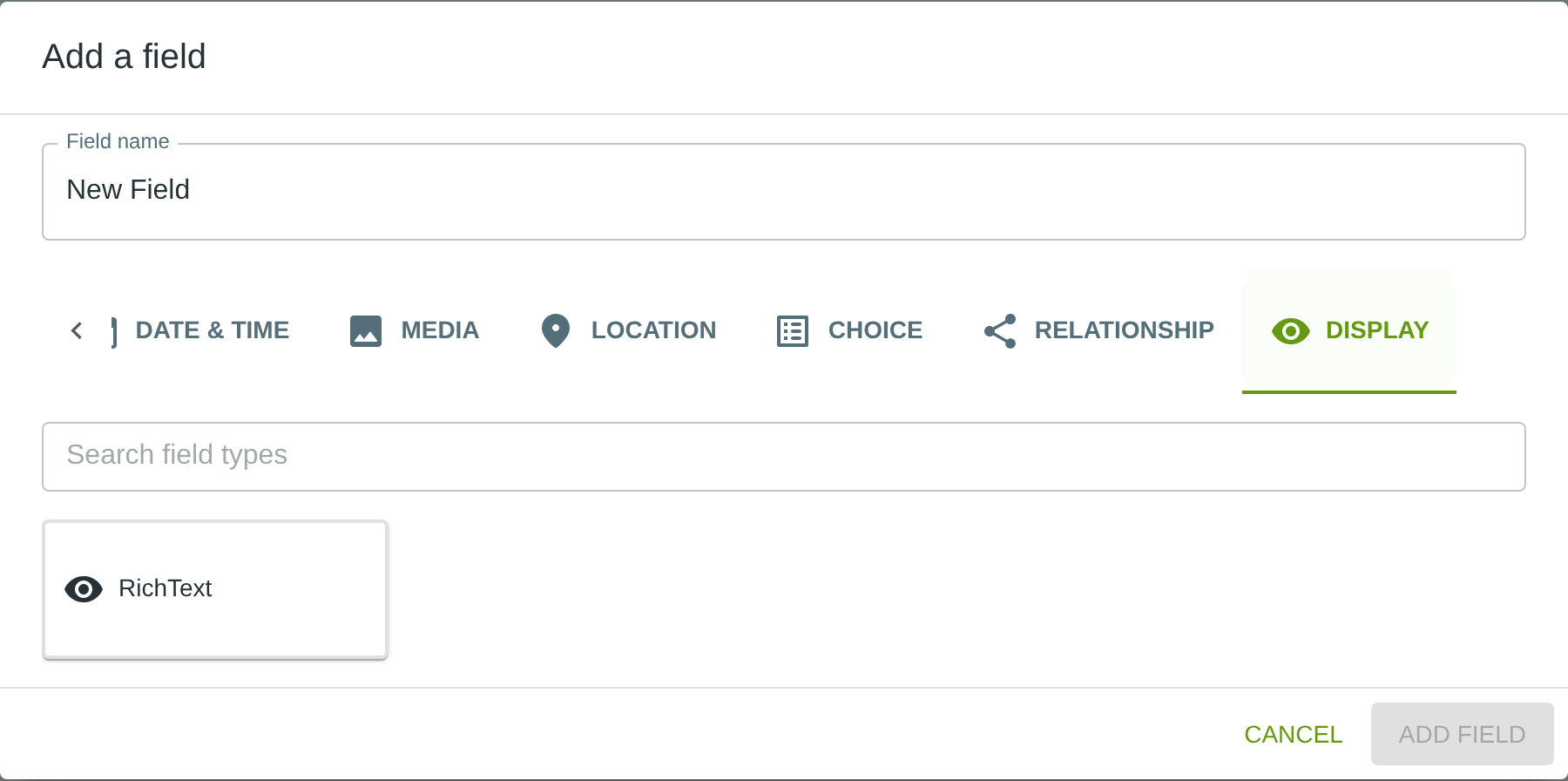
To add this field, open the ADD A FIELD dialog, navigate to the DISPLAY tab, and click the RichText card. Then click the ADD FIELD button in the lower right.
Note: The DISPLAY tab may not be visible in the tab bar initially — click the › arrow button on the right side of the tab bar to scroll until it appears.
Configuring the Field
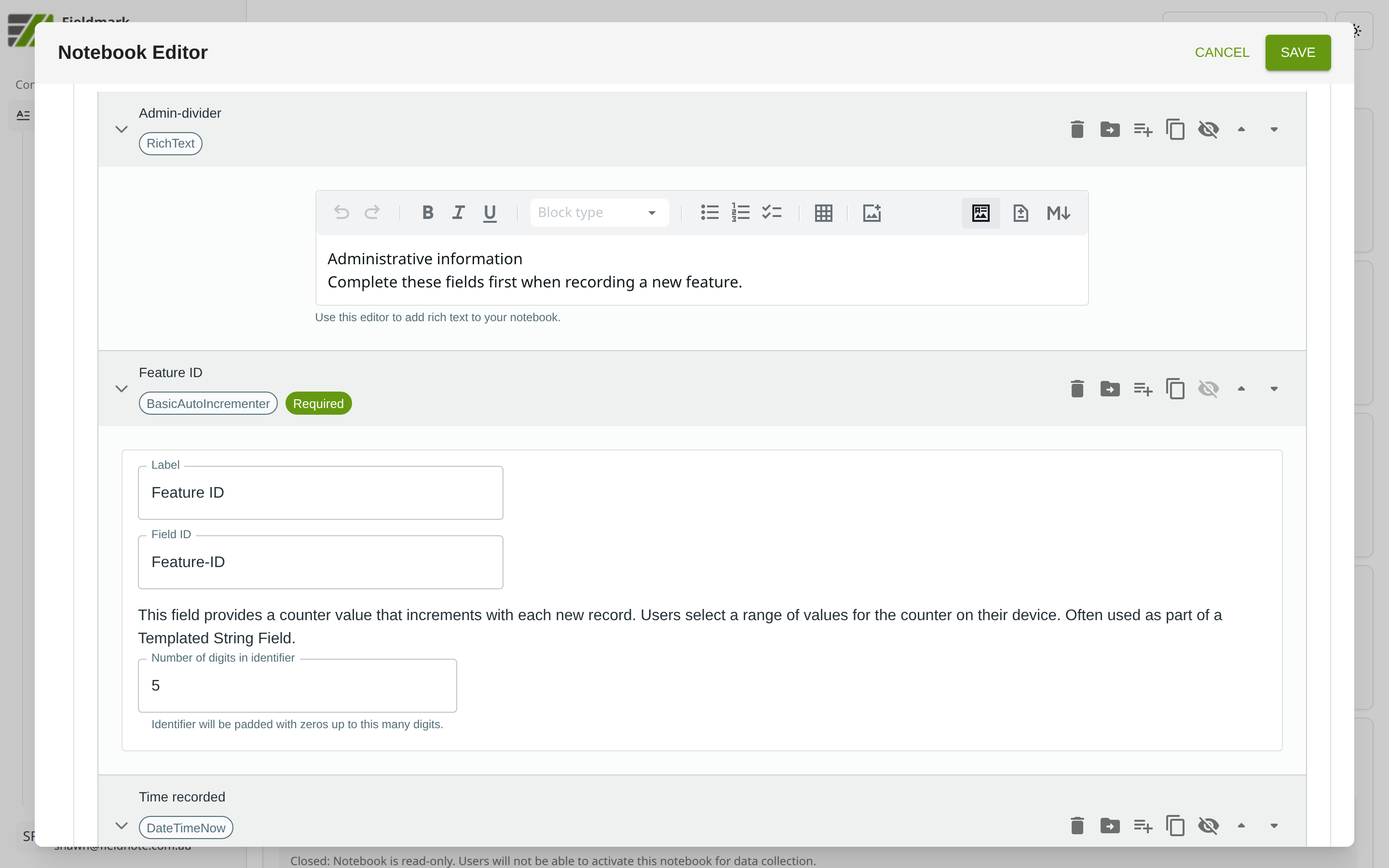
Click the field’s grey header bar to expand it and see its settings. For an overview of the settings shared by all fields — including Label, Helper Text, Field ID, and the field toolbar — see Field Identity and Field Toolbar.
Give the field a meaningful Label, review the auto-populated Field ID, and add any desired Helper Text.
Rich Text-Specific Settings
The Rich Text field provides a content editor for authoring the display content, available in two modes:
Setting |
What It Does |
|---|---|
Content editor |
A Markdown editor where you write the content that will be displayed in the form. Supports both a visual WYSIWYG mode and a source Markdown mode — toggle between them as needed. |
The editor supports standard Markdown formatting: bold, italic, headings, lists, and links. You can also insert images as Base64-encoded data through the editor’s image upload feature.
Note: Tables created in the editor will appear correctly in the Notebook Editor but are stripped at runtime and will not display in the data collection app.
Tips
Place Rich Text fields at the top of sections to orient collectors before they begin entering data. Example: “Record all visible features in this trench section. Photograph before excavation.”
Keep text concise — field workers are typically reading in bright sunlight on a small screen. Short, imperative sentences work best. Avoid lengthy paragraphs.
Use Conditions to show context-sensitive guidance — for example, display a safety warning only when a “Hazardous site” option is selected elsewhere in the form. This keeps the form clean for routine entries while providing critical information when needed.